DB서버, WEB서버 실습
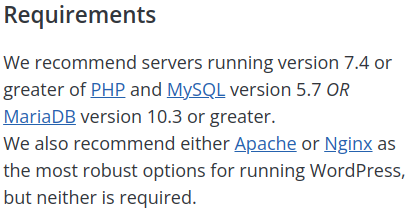
웹서버에 wordpress 라는 게시판 php소스를 올릴거임
wordpress download >>> 구글검색
이것을 보면 php7.4이상, mysql 5.7이상, mariaDB 10.3 이상을 요구함
1.db서버
DB서버 로그인후(ssh로) maraidb패키지 버전 확인해보자
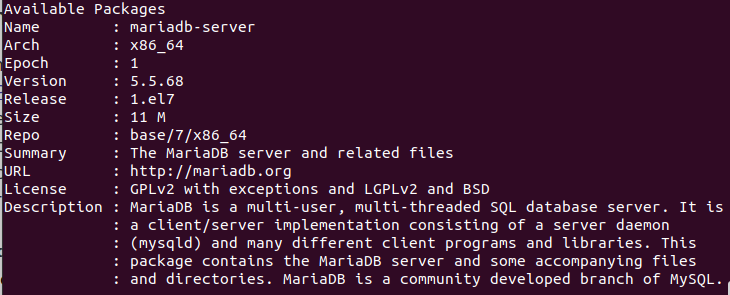
이용가능한 패키지 버전 5.5.68..... 10.3에는 턱없이 부족함 ㅋㅋㅋ
Download MariaDB Server - MariaDB.org
REST API Release Schedule Reporting Bugs … Continue reading "Download MariaDB Server"
mariadb.org
다운로드 >>> MariaDB Sever Repositories 클릭 >>> Choose a distribution : centos7 >>> Choose a MariaDB Server version : 10.3 >>> Mirrir : select >>> 밑에처럼 뜨게됨 복사하면됨

cd /etc/yum.repos.d/ : 이 디렉토리 안에는 .repo 확장자를 가진 파일들이 있으며, 각 파일은 다양한 소프트웨어 저장소에 대한 설정 정보를 포함합니다.
sudo vim Mariadb.repo >>> 복사한것 붙여넣기
sudo yum install MariaDB-server MariaDB-client -y >>> 설치
rpm -ql MariaDB-server >>> RPM 패키지 관리자를 사용하여 MariaDB-server 패키지가 설치된 경로와 포함된 파일 목록을 표시하는 명령
sudo systemctl start mariadb.service
sudo systemctl enable mariadb.service
sudo mysql_secure_installation : MariaDB 또는 MySQL 데이터베이스 서버의 초기 보안 설정을 수행하는 명령
방화벽 혀용 설정 해줌
허용 된거 확인
mysql -u root -p : MariaDB 또는 MySQL 데이터베이스 서버에 root 사용자로 접속하는 명령
show databases; >>> 데이터베이스 확인
use mysql >>> mysql 데이터베이스 들어감
show tables; >>> 테이블 확인
select Host.User.Password from user;>>> user테이블 조회
사용자 만들어주기
create user dbmanager@'10.0.2.20' identified by 'qwer1234';
create user dbmanager@'localhost' identified by 'qwer1234';
flush privileges; : 새로운 계정을 생성하거나 권한을 변경한 후, 변경 사항을 즉시 적용하고자 할 때
WEB서버
sudo yum install mariadb >>> 클라이언트 서버도 설치해야되기에
mysql -u dbmanager -p -h 10.0.2.30 >> MariaDB 또는 MySQL 데이터베이스 서버에 dbmanager 사용자로 원격 접속하는 명령입니다. -u 옵션은 사용할 사용자 이름을 지정하고, -p 옵션은 비밀번호를 입력하라는 프롬프트를 표시하도록 설정합니다. -h 옵션은 접속할 데이터베이스 서버의 호스트를 지정합니다
접속성공확인!!!
web server(apache php)
apache설치!!
yum install httpd >>> 아파치 설치
rpm -ql httpd >>> "httpd" 패키지에 대한 파일 목록을 출력하는 명령어입니다.
sudo systemctl start httpd.service >>> **httpd.service**라는 이름의 서비스를 시작하는 명령 sudo systemctl enable httpd.service >>> **httpd.service**를 부팅 시 자동으로 시작되도록 설정하는 명령
sudo systemctl status httpd.service >>> **httpd.service**의 상태를 확인하는 명령
패키지 설치후 동작하는지 확인
ps -ef | grep httpd >>> 현재 실행 중인 프로세스 중 "httpd"라는 이름을 가진 프로세스를 찾아내는 명령
방화벽을 열어줘야됨(80번포트)
sudo firewall-cmd --list-all >>> 현재 방화벽(Firewall)의 모든 설정을 보여줍니다
sudo firewall-cmd --add-service http >>> 방화벽 규칙에 http 서비스를 추가하는 명령
sudo firewall-cmd --add-service http --permanent >>> 방화벽 규칙에 http 서비스를 영구적으로 추가하는 명령
이제 php설치해야되는데
yum info php >>> 버전 확인시 5.4…. 어림도없음
sudo yum install https://rpms.remirepo.net/enterprise/remi-release-7.rpm >>> Remi Repository를 설치하기 위한 명령어입니다. Remi Repository는 CentOS 7에서 추가적인 소프트웨어 패키지를 제공하기 위한 저장소입니다.
yum repolist >>> 현재 시스템에서 사용 가능한 모든 저장소(repositories)와 그들의 패키지 목록을 보여줍니다. 이 명령어를 실행하면 Remi Repository가 설치되어 있는지 확인할 수 있습니다.
yum install -y yum-utils >>> yum-utils 패키지를 설치하는 명령(config 명령 사용하기 위해)
yum-config-manager --disable remi-php54 (php5.4버전 끄기)
yum-config-manager --enable remi-php74 (php7.4버전 켜기)
yum info php74 >>> php74 패키지에 대한 정보를 조회하는 명령
sudo yum install -y php74-php php-cli php74-scldevel \
php74-php-xml php74-php-xmlrpc php74-php-soap \
php74-php-process php74-php-pgsql php74-php-pdo \
php74-php-opcache php74-php-mbstring php74-php-ldap \
php74-php-json php74-php-ioncube-loader php74-php-intl \
php74-php-gmp php74-php-gd php74-php-fpm php74-php-devel \
php74-php-dba php74-php-common php74-php-cli \
php74-php-bcmath php74-php-phpiredis php74-php-pecl-igbinary \
php74-php-pecl-imagick-im7 php74-php-pecl-imagick-im7-devel \
php74-php-pecl-igbinary-devel php74-php-pecl-geoip \
php74-php-pecl-xdebug php74-php-pecl-mysqlnd-azure >>> PHP 7.4 버전과 관련된 여러 패키지를 설치
systemctl restart httpd.service >>> httpd.service 서비스를 재시작하는 명령
systemctl status httpd.service >>> httpd.service 서비스의 상태를 확인하는 명령
php 웹프로그래밍 확인(동작하는지 테스트해 보자)
vim /var/www/html/test.php (테스트 후에 삭제)
<?php phpinfo(); ?>
sudo vim /etc/httpd/conf/httpd.conf
163 <IfModule dir_module>
164 DirectoryIndex index.php index.html
165 </IfModule>
sudo systemctl restart httpd >>> httpd 서비스를 재시작하는 명령
ubuntu system에서 http://192.168.56.103 (웹서버 host only ip주소)
test페이지
test.php
rm /var/www/html/test.php >>> 테스트 끝났으면 삭제
wordpress 소스 다운로드 - DB와 연결해서 작업할 수 있도록 database 작업도 해야함.
워드프레스 게시판 다운받기
참고사이트 https://wordpress.org/support/article/how-to-install-wordpress/
yum install -y wget (URL로 바로 받기 위해 wget 패키지설치)
cd ~
wget https://wordpress.org/latest.tar.gz
-> 버그로인해업데이트권장 2021년 5.8.3 2022.3.10현재 5.9.1
2022.3.11 5.9.2 버전업
file latest.tar.gz
tar -xvzf latest.tar.gz -C /var/www/html 아카이브및압축 해제 (위치지정- 아카이브 해제 되는 디렉토리를 확인해야함. 특정 디렉토리내에 아카이브가 해제되기도 함.)
별도 스토리지를 사용할 경우, 해당 디렉토리로 압축을 해제해야함.
mkdir /var/www/html/wordpress/uploads (게시판을 그림파일 올릴때 해당 디렉토리 생성
아카이브 해제시 경로 확인해보세요. 그아래 uploads 디렉토리를 생성해야함.
wordpress 사용할 데이터베이스 관련 설정
게시판으로 사용할 database 이름 결정 예) wordpress
DBMS 접근할 사용자 이름/암호 결정 예) adminuser/dkagh1.
웹서버와 DB서버 같은서버인지 다른서버인지에 따라서 접근 가능 방법 : localhost
권한 : adminuser 사용자에게 wordpress DB의 모든 테이블에 대해서( wordpress.* ) 모든 권한을 부여함.
워드프레스 구성 (데이터베이스 서버와 연결할 수 있도록 구성이 필요함. 접속할 데이터베이스 서버IP, 데이터베이스 이름, 접속 사용자 이름 및 암호 설정)
ls -l /var/www/html/wordpress/wp-config-sample.php 샘플 파일임
cd /var/www/html/wordpress
cp wp-config-sample.php wp-config.php 샘플파일을 복사하여 수정
chown -R apache:apache /var/www/html/wordpress 압축해제된 디렉토리와 그 하위 디렉토리에 소유자,소유그룹 변경
웹프로그래밍이 DBMS 접속할 정보를 셋팅해줌
vim wp-config.php
// ** MySQL settings - You can get this info from your web host ** //
/** The name of the database for WordPress */
define( 'DB_NAME', 'database_name_here' ); 데이터 베이스이름 wordpress
/** MySQL database username */
define( 'DB_USER', 'username_here' ); 데이터베이스 사용자 이름 adminuser
/** MySQL database password */
define( 'DB_PASSWORD', 'password_here' ); 위 사용자의 암호 qwer1234
/** Database hostname */
define( 'DB_HOST', 'localhost' ); DB server ip address 10.0.2.30
- *DB서버가 별도로 있을 경우, DB서버IP주소도 변경해주어야 함.
서버 IP : localhost -> 별도의 db가 있으면 DB IP주소 지정
이렇게 변경
23 define( 'DB_NAME', 'wordpress' );
24
25 /** Database username */
26 define( 'DB_USER', 'adminuser' );
27
28 /** Database password */
29 define( 'DB_PASSWORD', 'qwer1234' );
30
31 /** Database hostname */
32 define( 'DB_HOST', '10.0.2.30' );
MariaDB [(none)]> show databases;
+--------------------+
| Database |
+--------------------+
| information_schema |
| mysql |
| performance_schema |
| wordpress |
+--------------------+
4 rows in set (0.001 sec)
MariaDB [(none)]> use mysql;
Reading table information for completion of table and column names
You can turn off this feature to get a quicker startup with -A
Database changed
MariaDB [mysql]> select Host,User,Password from user;
+-----------+-----------+-------------------------------------------+
| Host | User | Password |
+-----------+-----------+-------------------------------------------+
| localhost | root | *D75CC763C5551A420D28A227AC294FADE26A2FF2 |
| 127.0.0.1 | root | *D75CC763C5551A420D28A227AC294FADE26A2FF2 |
| ::1 | root | *D75CC763C5551A420D28A227AC294FADE26A2FF2 |
| localhost | dbmanager | *D75CC763C5551A420D28A227AC294FADE26A2FF2 |
| 10.0.2.20 | dbmanager | *D75CC763C5551A420D28A227AC294FADE26A2FF2 |
| 10.0.2.20 | adminuser | *C03E54BA93C6BB20191684E147C09AA15234BB1D |
+-----------+-----------+-------------------------------------------+
6 rows in set (0.000 sec)
web server
[user@web wordpress]$ mysql -u adminuser -p -h 10.0.2.30
Enter password: qwer1234(blank 1)
Welcome to the MariaDB monitor. Commands end with ; or \g.
Your MariaDB connection id is 25
Server version: 10.3.39-MariaDB MariaDB Server
Copyright (c) 2000, 2018, Oracle, MariaDB Corporation Ab and others.
Type 'help;' or '\h' for help. Type '\c' to clear the current input statement.
MariaDB [(none)]> show databases;
+--------------------+
| Database |
+--------------------+
| information_schema |
| wordpress |
+--------------------+
2 rows in set (0.00 sec)
MariaDB [(none)]> exit
http://192.168.56.105/wordpress/wp-admin/install.php
이렇게 뜸
이렇게 설정
비밀번호 K&bytlWQJ8Eg8QNkm@
https
- 개인키 생성
openssl genrsa -out private.key 2048
cat private.key : 확인해보기
sudo yum install mod_ssl >>> mod_ssl 모듈을 설치하기 위한 명령어입니다. 이 모듈은 Apache HTTP Server에서 SSL/TLS 암호화를 지원하기 위해 사용됩니다.
- CSR 생성
csr은 서버 인증서를 발급받기 위해 필요한 서명 요구 입니다
openssl req -new -key private.key -out cert.csr
cat cert.csr >>> 확인
CSR파일 생성후, 실제 서비스에 사용할 인증서를 생성
openssl x509 -req -signkey private.key -in cert.csr -out cert.crt
cat cert.crt >>> 확인
인증서 및 개인키의 위치를 웹서비스가 접근할수 있는 위치로 이동
sudo mv ~/cert.crt /etc/pki/tls/certs/
sudo mv ~/private.key /etc/pki/tls/private/
sudo chmod 600 /etc/pki/tls/private/private.key
sudo vim /etc/httpd/conf.d/ssl.conf 들어가서 밑에 두개 수정
에러있나 확인
ss -antpss -antp >> TCP 연결의 목록을 보여주는 명령(443포트 있어야됨)
아파치 웹서버서 https를 사용하려면 ssl/tls 지원하는 모듈이 필요
yum -y install mod_ssl
firewall-cmd --add-service=https --permanent
firewall -cmd --reload
rpm -ql MariaDB-server >>> RPM 패키지 관리자를 사용하여 MariaDB-server 패키지가 설치된 경로와 포함된 파일 목록을 표시하는 명령
sudo systemctl start mariadb.service
sudo systemctl enable mariadb.service
sudo mysql_secure_installation : MariaDB 또는 MySQL 데이터베이스 서버의 초기 보안 설정을 수행하는 명령
방화벽 혀용 설정 해줌
허용 된거 확인
mysql -u root -p : MariaDB 또는 MySQL 데이터베이스 서버에 root 사용자로 접속하는 명령
show databases; >>> 데이터베이스 확인
use mysql >>> mysql 데이터베이스 들어감
show tables; >>> 테이블 확인
select Host.User.Password from user;>>> user테이블 조회
사용자 만들어주기
create user dbmanager@'10.0.2.20' identified by 'qwer1234';
create user dbmanager@'localhost' identified by 'qwer1234';
flush privileges; : 새로운 계정을 생성하거나 권한을 변경한 후, 변경 사항을 즉시 적용하고자 할 때
WEB서버
sudo yum install mariadb >>> 클라이언트 서버도 설치해야되기에
mysql -u dbmanager -p -h 10.0.2.30 >> MariaDB 또는 MySQL 데이터베이스 서버에 dbmanager 사용자로 원격 접속하는 명령입니다. -u 옵션은 사용할 사용자 이름을 지정하고, -p 옵션은 비밀번호를 입력하라는 프롬프트를 표시하도록 설정합니다. -h 옵션은 접속할 데이터베이스 서버의 호스트를 지정합니다
접속성공확인!!!
web server(apache php)
apache설치!!
yum install httpd >>> 아파치 설치
rpm -ql httpd >>> "httpd" 패키지에 대한 파일 목록을 출력하는 명령어입니다.
sudo systemctl start httpd.service >>> **httpd.service**라는 이름의 서비스를 시작하는 명령 sudo systemctl enable httpd.service >>> **httpd.service**를 부팅 시 자동으로 시작되도록 설정하는 명령
sudo systemctl status httpd.service >>> **httpd.service**의 상태를 확인하는 명령
패키지 설치후 동작하는지 확인
ps -ef | grep httpd >>> 현재 실행 중인 프로세스 중 "httpd"라는 이름을 가진 프로세스를 찾아내는 명령
방화벽을 열어줘야됨(80번포트)
sudo firewall-cmd --list-all >>> 현재 방화벽(Firewall)의 모든 설정을 보여줍니다
sudo firewall-cmd --add-service http >>> 방화벽 규칙에 http 서비스를 추가하는 명령
sudo firewall-cmd --add-service http --permanent >>> 방화벽 규칙에 http 서비스를 영구적으로 추가하는 명령
이제 php설치해야되는데
yum info php >>> 버전 확인시 5.4…. 어림도없음
sudo yum install https://rpms.remirepo.net/enterprise/remi-release-7.rpm >>> Remi Repository를 설치하기 위한 명령어입니다. Remi Repository는 CentOS 7에서 추가적인 소프트웨어 패키지를 제공하기 위한 저장소입니다.
yum repolist >>> 현재 시스템에서 사용 가능한 모든 저장소(repositories)와 그들의 패키지 목록을 보여줍니다. 이 명령어를 실행하면 Remi Repository가 설치되어 있는지 확인할 수 있습니다.
yum install -y yum-utils >>> yum-utils 패키지를 설치하는 명령(config 명령 사용하기 위해)
yum-config-manager --disable remi-php54 (php5.4버전 끄기)
yum-config-manager --enable remi-php74 (php7.4버전 켜기)
yum info php74 >>> php74 패키지에 대한 정보를 조회하는 명령
sudo yum install -y php74-php php-cli php74-scldevel \
php74-php-xml php74-php-xmlrpc php74-php-soap \
php74-php-process php74-php-pgsql php74-php-pdo \
php74-php-opcache php74-php-mbstring php74-php-ldap \
php74-php-json php74-php-ioncube-loader php74-php-intl \
php74-php-gmp php74-php-gd php74-php-fpm php74-php-devel \
php74-php-dba php74-php-common php74-php-cli \
php74-php-bcmath php74-php-phpiredis php74-php-pecl-igbinary \
php74-php-pecl-imagick-im7 php74-php-pecl-imagick-im7-devel \
php74-php-pecl-igbinary-devel php74-php-pecl-geoip \
php74-php-pecl-xdebug php74-php-pecl-mysqlnd-azure >>> PHP 7.4 버전과 관련된 여러 패키지를 설치
systemctl restart httpd.service >>> httpd.service 서비스를 재시작하는 명령
systemctl status httpd.service >>> httpd.service 서비스의 상태를 확인하는 명령
php 웹프로그래밍 확인(동작하는지 테스트해 보자)
vim /var/www/html/test.php (테스트 후에 삭제)
<?php phpinfo(); ?>
sudo vim /etc/httpd/conf/httpd.conf
163 <IfModule dir_module>
164 DirectoryIndex index.php index.html
165 </IfModule>
sudo systemctl restart httpd >>> httpd 서비스를 재시작하는 명령
ubuntu system에서 http://192.168.56.103 (웹서버 host only ip주소)
test페이지
test.php
rm /var/www/html/test.php >>> 테스트 끝났으면 삭제
wordpress 소스 다운로드 - DB와 연결해서 작업할 수 있도록 database 작업도 해야함.
워드프레스 게시판 다운받기
참고사이트 https://wordpress.org/support/article/how-to-install-wordpress/
yum install -y wget (URL로 바로 받기 위해 wget 패키지설치)
cd ~
wget https://wordpress.org/latest.tar.gz
-> 버그로인해업데이트권장 2021년 5.8.3 2022.3.10현재 5.9.1
2022.3.11 5.9.2 버전업
file latest.tar.gz
tar -xvzf latest.tar.gz -C /var/www/html 아카이브및압축 해제 (위치지정- 아카이브 해제 되는 디렉토리를 확인해야함. 특정 디렉토리내에 아카이브가 해제되기도 함.)
별도 스토리지를 사용할 경우, 해당 디렉토리로 압축을 해제해야함.
mkdir /var/www/html/wordpress/uploads (게시판을 그림파일 올릴때 해당 디렉토리 생성
아카이브 해제시 경로 확인해보세요. 그아래 uploads 디렉토리를 생성해야함.
wordpress 사용할 데이터베이스 관련 설정
게시판으로 사용할 database 이름 결정 예) wordpress
DBMS 접근할 사용자 이름/암호 결정 예) adminuser/dkagh1.
웹서버와 DB서버 같은서버인지 다른서버인지에 따라서 접근 가능 방법 : localhost
권한 : adminuser 사용자에게 wordpress DB의 모든 테이블에 대해서( wordpress.* ) 모든 권한을 부여함.
워드프레스 구성 (데이터베이스 서버와 연결할 수 있도록 구성이 필요함. 접속할 데이터베이스 서버IP, 데이터베이스 이름, 접속 사용자 이름 및 암호 설정)
ls -l /var/www/html/wordpress/wp-config-sample.php 샘플 파일임
cd /var/www/html/wordpress
cp wp-config-sample.php wp-config.php 샘플파일을 복사하여 수정
chown -R apache:apache /var/www/html/wordpress 압축해제된 디렉토리와 그 하위 디렉토리에 소유자,소유그룹 변경
웹프로그래밍이 DBMS 접속할 정보를 셋팅해줌
vim wp-config.php
// ** MySQL settings - You can get this info from your web host ** //
/** The name of the database for WordPress */
define( 'DB_NAME', 'database_name_here' ); 데이터 베이스이름 wordpress
/** MySQL database username */
define( 'DB_USER', 'username_here' ); 데이터베이스 사용자 이름 adminuser
/** MySQL database password */
define( 'DB_PASSWORD', 'password_here' ); 위 사용자의 암호 qwer1234
/** Database hostname */
define( 'DB_HOST', 'localhost' ); DB server ip address 10.0.2.30
- *DB서버가 별도로 있을 경우, DB서버IP주소도 변경해주어야 함.
서버 IP : localhost -> 별도의 db가 있으면 DB IP주소 지정
이렇게 변경
23 define( 'DB_NAME', 'wordpress' );
24
25 /** Database username */
26 define( 'DB_USER', 'adminuser' );
27
28 /** Database password */
29 define( 'DB_PASSWORD', 'qwer1234' );
30
31 /** Database hostname */
32 define( 'DB_HOST', '10.0.2.30' );
MariaDB [(none)]> show databases;
+--------------------+
| Database |
+--------------------+
| information_schema |
| mysql |
| performance_schema |
| wordpress |
+--------------------+
4 rows in set (0.001 sec)
MariaDB [(none)]> use mysql;
Reading table information for completion of table and column names
You can turn off this feature to get a quicker startup with -A
Database changed
MariaDB [mysql]> select Host,User,Password from user;
+-----------+-----------+-------------------------------------------+
| Host | User | Password |
+-----------+-----------+-------------------------------------------+
| localhost | root | *D75CC763C5551A420D28A227AC294FADE26A2FF2 |
| 127.0.0.1 | root | *D75CC763C5551A420D28A227AC294FADE26A2FF2 |
| ::1 | root | *D75CC763C5551A420D28A227AC294FADE26A2FF2 |
| localhost | dbmanager | *D75CC763C5551A420D28A227AC294FADE26A2FF2 |
| 10.0.2.20 | dbmanager | *D75CC763C5551A420D28A227AC294FADE26A2FF2 |
| 10.0.2.20 | adminuser | *C03E54BA93C6BB20191684E147C09AA15234BB1D |
+-----------+-----------+-------------------------------------------+
6 rows in set (0.000 sec)
web server
[user@web wordpress]$ mysql -u adminuser -p -h 10.0.2.30
Enter password: qwer1234(blank 1)
Welcome to the MariaDB monitor. Commands end with ; or \g.
Your MariaDB connection id is 25
Server version: 10.3.39-MariaDB MariaDB Server
Copyright (c) 2000, 2018, Oracle, MariaDB Corporation Ab and others.
Type 'help;' or '\h' for help. Type '\c' to clear the current input statement.
MariaDB [(none)]> show databases;
+--------------------+
| Database |
+--------------------+
| information_schema |
| wordpress |
+--------------------+
2 rows in set (0.00 sec)
MariaDB [(none)]> exit
http://192.168.56.105/wordpress/wp-admin/install.php
이렇게 뜸
이렇게 설정
비밀번호 K&bytlWQJ8Eg8QNkm@
https
- 개인키 생성
openssl genrsa -out private.key 2048
cat private.key : 확인해보기
sudo yum install mod_ssl >>> mod_ssl 모듈을 설치하기 위한 명령어입니다. 이 모듈은 Apache HTTP Server에서 SSL/TLS 암호화를 지원하기 위해 사용됩니다.
- CSR 생성
csr은 서버 인증서를 발급받기 위해 필요한 서명 요구 입니다
openssl req -new -key private.key -out cert.csr
cat cert.csr >>> 확인
CSR파일 생성후, 실제 서비스에 사용할 인증서를 생성
openssl x509 -req -signkey private.key -in cert.csr -out cert.crt
cat cert.crt >>> 확인
인증서 및 개인키의 위치를 웹서비스가 접근할수 있는 위치로 이동
sudo mv ~/cert.crt /etc/pki/tls/certs/
sudo mv ~/private.key /etc/pki/tls/private/
sudo chmod 600 /etc/pki/tls/private/private.key
sudo vim /etc/httpd/conf.d/ssl.conf 들어가서 밑에 두개 수정
에러있나 확인
ss -antpss -antp >> TCP 연결의 목록을 보여주는 명령(443포트 있어야됨)
아파치 웹서버서 https를 사용하려면 ssl/tls 지원하는 모듈이 필요
yum -y install mod_ssl
firewall-cmd --add-service=https --permanent
firewall -cmd --reload
rpm -ql MariaDB-server >>> RPM 패키지 관리자를 사용하여 MariaDB-server 패키지가 설치된 경로와 포함된 파일 목록을 표시하는 명령
sudo systemctl start mariadb.service
sudo systemctl enable mariadb.service
sudo mysql_secure_installation : MariaDB 또는 MySQL 데이터베이스 서버의 초기 보안 설정을 수행하는 명령
방화벽 혀용 설정 해줌
허용 된거 확인
mysql -u root -p : MariaDB 또는 MySQL 데이터베이스 서버에 root 사용자로 접속하는 명령
show databases; >>> 데이터베이스 확인
use mysql >>> mysql 데이터베이스 들어감
show tables; >>> 테이블 확인
select Host.User.Password from user;>>> user테이블 조회
사용자 만들어주기
create user dbmanager@'10.0.2.20' identified by 'qwer1234';
create user dbmanager@'localhost' identified by 'qwer1234';
flush privileges; : 새로운 계정을 생성하거나 권한을 변경한 후, 변경 사항을 즉시 적용하고자 할 때
WEB서버
sudo yum install mariadb >>> 클라이언트 서버도 설치해야되기에
mysql -u dbmanager -p -h 10.0.2.30 >> MariaDB 또는 MySQL 데이터베이스 서버에 dbmanager 사용자로 원격 접속하는 명령입니다. -u 옵션은 사용할 사용자 이름을 지정하고, -p 옵션은 비밀번호를 입력하라는 프롬프트를 표시하도록 설정합니다. -h 옵션은 접속할 데이터베이스 서버의 호스트를 지정합니다
접속성공확인!!!
web server(apache php)
apache설치!!
yum install httpd >>> 아파치 설치
rpm -ql httpd >>> "httpd" 패키지에 대한 파일 목록을 출력하는 명령어입니다.
sudo systemctl start httpd.service >>> **httpd.service**라는 이름의 서비스를 시작하는 명령 sudo systemctl enable httpd.service >>> **httpd.service**를 부팅 시 자동으로 시작되도록 설정하는 명령
sudo systemctl status httpd.service >>> **httpd.service**의 상태를 확인하는 명령
패키지 설치후 동작하는지 확인
ps -ef | grep httpd >>> 현재 실행 중인 프로세스 중 "httpd"라는 이름을 가진 프로세스를 찾아내는 명령
방화벽을 열어줘야됨(80번포트)
sudo firewall-cmd --list-all >>> 현재 방화벽(Firewall)의 모든 설정을 보여줍니다
sudo firewall-cmd --add-service http >>> 방화벽 규칙에 http 서비스를 추가하는 명령
sudo firewall-cmd --add-service http --permanent >>> 방화벽 규칙에 http 서비스를 영구적으로 추가하는 명령
이제 php설치해야되는데
yum info php >>> 버전 확인시 5.4…. 어림도없음
sudo yum install https://rpms.remirepo.net/enterprise/remi-release-7.rpm >>> Remi Repository를 설치하기 위한 명령어입니다. Remi Repository는 CentOS 7에서 추가적인 소프트웨어 패키지를 제공하기 위한 저장소입니다.
yum repolist >>> 현재 시스템에서 사용 가능한 모든 저장소(repositories)와 그들의 패키지 목록을 보여줍니다. 이 명령어를 실행하면 Remi Repository가 설치되어 있는지 확인할 수 있습니다.
yum install -y yum-utils >>> yum-utils 패키지를 설치하는 명령(config 명령 사용하기 위해)
yum-config-manager --disable remi-php54 (php5.4버전 끄기)
yum-config-manager --enable remi-php74 (php7.4버전 켜기)
yum info php74 >>> php74 패키지에 대한 정보를 조회하는 명령
sudo yum install -y php74-php php-cli php74-scldevel \
php74-php-xml php74-php-xmlrpc php74-php-soap \
php74-php-process php74-php-pgsql php74-php-pdo \
php74-php-opcache php74-php-mbstring php74-php-ldap \
php74-php-json php74-php-ioncube-loader php74-php-intl \
php74-php-gmp php74-php-gd php74-php-fpm php74-php-devel \
php74-php-dba php74-php-common php74-php-cli \
php74-php-bcmath php74-php-phpiredis php74-php-pecl-igbinary \
php74-php-pecl-imagick-im7 php74-php-pecl-imagick-im7-devel \
php74-php-pecl-igbinary-devel php74-php-pecl-geoip \
php74-php-pecl-xdebug php74-php-pecl-mysqlnd-azure >>> PHP 7.4 버전과 관련된 여러 패키지를 설치
systemctl restart httpd.service >>> httpd.service 서비스를 재시작하는 명령
systemctl status httpd.service >>> httpd.service 서비스의 상태를 확인하는 명령
php 웹프로그래밍 확인(동작하는지 테스트해 보자)
vim /var/www/html/test.php (테스트 후에 삭제)
<?php phpinfo(); ?>
sudo vim /etc/httpd/conf/httpd.conf
163 <IfModule dir_module>
164 DirectoryIndex index.php index.html
165 </IfModule>
sudo systemctl restart httpd >>> httpd 서비스를 재시작하는 명령
ubuntu system에서 http://192.168.56.103 (웹서버 host only ip주소)
test페이지
test.php
rm /var/www/html/test.php >>> 테스트 끝났으면 삭제
wordpress 소스 다운로드 - DB와 연결해서 작업할 수 있도록 database 작업도 해야함.
워드프레스 게시판 다운받기
참고사이트 https://wordpress.org/support/article/how-to-install-wordpress/
yum install -y wget (URL로 바로 받기 위해 wget 패키지설치)
cd ~
wget https://wordpress.org/latest.tar.gz
-> 버그로인해업데이트권장 2021년 5.8.3 2022.3.10현재 5.9.1
2022.3.11 5.9.2 버전업
file latest.tar.gz
tar -xvzf latest.tar.gz -C /var/www/html 아카이브및압축 해제 (위치지정- 아카이브 해제 되는 디렉토리를 확인해야함. 특정 디렉토리내에 아카이브가 해제되기도 함.)
별도 스토리지를 사용할 경우, 해당 디렉토리로 압축을 해제해야함.
mkdir /var/www/html/wordpress/uploads (게시판을 그림파일 올릴때 해당 디렉토리 생성
아카이브 해제시 경로 확인해보세요. 그아래 uploads 디렉토리를 생성해야함.
wordpress 사용할 데이터베이스 관련 설정
게시판으로 사용할 database 이름 결정 예) wordpress
DBMS 접근할 사용자 이름/암호 결정 예) adminuser/dkagh1.
웹서버와 DB서버 같은서버인지 다른서버인지에 따라서 접근 가능 방법 : localhost
권한 : adminuser 사용자에게 wordpress DB의 모든 테이블에 대해서( wordpress.* ) 모든 권한을 부여함.
워드프레스 구성 (데이터베이스 서버와 연결할 수 있도록 구성이 필요함. 접속할 데이터베이스 서버IP, 데이터베이스 이름, 접속 사용자 이름 및 암호 설정)
ls -l /var/www/html/wordpress/wp-config-sample.php 샘플 파일임
cd /var/www/html/wordpress
cp wp-config-sample.php wp-config.php 샘플파일을 복사하여 수정
chown -R apache:apache /var/www/html/wordpress 압축해제된 디렉토리와 그 하위 디렉토리에 소유자,소유그룹 변경
웹프로그래밍이 DBMS 접속할 정보를 셋팅해줌
vim wp-config.php
// ** MySQL settings - You can get this info from your web host ** //
/** The name of the database for WordPress */
define( 'DB_NAME', 'database_name_here' ); 데이터 베이스이름 wordpress
/** MySQL database username */
define( 'DB_USER', 'username_here' ); 데이터베이스 사용자 이름 adminuser
/** MySQL database password */
define( 'DB_PASSWORD', 'password_here' ); 위 사용자의 암호 qwer1234
/** Database hostname */
define( 'DB_HOST', 'localhost' ); DB server ip address 10.0.2.30
- *DB서버가 별도로 있을 경우, DB서버IP주소도 변경해주어야 함.
서버 IP : localhost -> 별도의 db가 있으면 DB IP주소 지정
이렇게 변경
23 define( 'DB_NAME', 'wordpress' );
24
25 /** Database username */
26 define( 'DB_USER', 'adminuser' );
27
28 /** Database password */
29 define( 'DB_PASSWORD', 'qwer1234' );
30
31 /** Database hostname */
32 define( 'DB_HOST', '10.0.2.30' );
MariaDB [(none)]> show databases;
+--------------------+
| Database |
+--------------------+
| information_schema |
| mysql |
| performance_schema |
| wordpress |
+--------------------+
4 rows in set (0.001 sec)
MariaDB [(none)]> use mysql;
Reading table information for completion of table and column names
You can turn off this feature to get a quicker startup with -A
Database changed
MariaDB [mysql]> select Host,User,Password from user;
+-----------+-----------+-------------------------------------------+
| Host | User | Password |
+-----------+-----------+-------------------------------------------+
| localhost | root | *D75CC763C5551A420D28A227AC294FADE26A2FF2 |
| 127.0.0.1 | root | *D75CC763C5551A420D28A227AC294FADE26A2FF2 |
| ::1 | root | *D75CC763C5551A420D28A227AC294FADE26A2FF2 |
| localhost | dbmanager | *D75CC763C5551A420D28A227AC294FADE26A2FF2 |
| 10.0.2.20 | dbmanager | *D75CC763C5551A420D28A227AC294FADE26A2FF2 |
| 10.0.2.20 | adminuser | *C03E54BA93C6BB20191684E147C09AA15234BB1D |
+-----------+-----------+-------------------------------------------+
6 rows in set (0.000 sec)
web server
[user@web wordpress]$ mysql -u adminuser -p -h 10.0.2.30
Enter password: qwer1234(blank 1)
Welcome to the MariaDB monitor. Commands end with ; or \g.
Your MariaDB connection id is 25
Server version: 10.3.39-MariaDB MariaDB Server
Copyright (c) 2000, 2018, Oracle, MariaDB Corporation Ab and others.
Type 'help;' or '\h' for help. Type '\c' to clear the current input statement.
MariaDB [(none)]> show databases;
+--------------------+
| Database |
+--------------------+
| information_schema |
| wordpress |
+--------------------+
2 rows in set (0.00 sec)
MariaDB [(none)]> exit
http://192.168.56.105/wordpress/wp-admin/install.php
이렇게 뜸
이렇게 설정
비밀번호 K&bytlWQJ8Eg8QNkm@
https
- 개인키 생성
openssl genrsa -out private.key 2048
cat private.key : 확인해보기
sudo yum install mod_ssl >>> mod_ssl 모듈을 설치하기 위한 명령어입니다. 이 모듈은 Apache HTTP Server에서 SSL/TLS 암호화를 지원하기 위해 사용됩니다.
- CSR 생성
csr은 서버 인증서를 발급받기 위해 필요한 서명 요구 입니다
openssl req -new -key private.key -out cert.csr
cat cert.csr >>> 확인
CSR파일 생성후, 실제 서비스에 사용할 인증서를 생성
openssl x509 -req -signkey private.key -in cert.csr -out cert.crt
cat cert.crt >>> 확인
인증서 및 개인키의 위치를 웹서비스가 접근할수 있는 위치로 이동
sudo mv ~/cert.crt /etc/pki/tls/certs/
sudo mv ~/private.key /etc/pki/tls/private/
sudo chmod 600 /etc/pki/tls/private/private.key
sudo vim /etc/httpd/conf.d/ssl.conf 들어가서 밑에 두개 수정
에러있나 확인
ss -antpss -antp >> TCP 연결의 목록을 보여주는 명령(443포트 있어야됨)
아파치 웹서버서 https를 사용하려면 ssl/tls 지원하는 모듈이 필요
yum -y install mod_ssl
firewall-cmd --add-service=https --permanent
firewall -cmd --reload
rpm -ql MariaDB-server >>> RPM 패키지 관리자를 사용하여 MariaDB-server 패키지가 설치된 경로와 포함된 파일 목록을 표시하는 명령
sudo systemctl start mariadb.service
sudo systemctl enable mariadb.service
sudo mysql_secure_installation : MariaDB 또는 MySQL 데이터베이스 서버의 초기 보안 설정을 수행하는 명령
방화벽 혀용 설정 해줌
허용 된거 확인
mysql -u root -p : MariaDB 또는 MySQL 데이터베이스 서버에 root 사용자로 접속하는 명령
show databases; >>> 데이터베이스 확인
use mysql >>> mysql 데이터베이스 들어감
show tables; >>> 테이블 확인
select Host.User.Password from user;>>> user테이블 조회
사용자 만들어주기
create user dbmanager@'10.0.2.20' identified by 'qwer1234';
create user dbmanager@'localhost' identified by 'qwer1234';
flush privileges; : 새로운 계정을 생성하거나 권한을 변경한 후, 변경 사항을 즉시 적용하고자 할 때
WEB서버
sudo yum install mariadb >>> 클라이언트 서버도 설치해야되기에
mysql -u dbmanager -p -h 10.0.2.30 >> MariaDB 또는 MySQL 데이터베이스 서버에 dbmanager 사용자로 원격 접속하는 명령입니다. -u 옵션은 사용할 사용자 이름을 지정하고, -p 옵션은 비밀번호를 입력하라는 프롬프트를 표시하도록 설정합니다. -h 옵션은 접속할 데이터베이스 서버의 호스트를 지정합니다
접속성공확인!!!
web server(apache php)
apache설치!!
yum install httpd >>> 아파치 설치
rpm -ql httpd >>> "httpd" 패키지에 대한 파일 목록을 출력하는 명령어입니다.
sudo systemctl start httpd.service >>> **httpd.service**라는 이름의 서비스를 시작하는 명령 sudo systemctl enable httpd.service >>> **httpd.service**를 부팅 시 자동으로 시작되도록 설정하는 명령
sudo systemctl status httpd.service >>> **httpd.service**의 상태를 확인하는 명령
패키지 설치후 동작하는지 확인
ps -ef | grep httpd >>> 현재 실행 중인 프로세스 중 "httpd"라는 이름을 가진 프로세스를 찾아내는 명령
방화벽을 열어줘야됨(80번포트)
sudo firewall-cmd --list-all >>> 현재 방화벽(Firewall)의 모든 설정을 보여줍니다
sudo firewall-cmd --add-service http >>> 방화벽 규칙에 http 서비스를 추가하는 명령
sudo firewall-cmd --add-service http --permanent >>> 방화벽 규칙에 http 서비스를 영구적으로 추가하는 명령
이제 php설치해야되는데
yum info php >>> 버전 확인시 5.4…. 어림도없음
sudo yum install https://rpms.remirepo.net/enterprise/remi-release-7.rpm >>> Remi Repository를 설치하기 위한 명령어입니다. Remi Repository는 CentOS 7에서 추가적인 소프트웨어 패키지를 제공하기 위한 저장소입니다.
yum repolist >>> 현재 시스템에서 사용 가능한 모든 저장소(repositories)와 그들의 패키지 목록을 보여줍니다. 이 명령어를 실행하면 Remi Repository가 설치되어 있는지 확인할 수 있습니다.
yum install -y yum-utils >>> yum-utils 패키지를 설치하는 명령(config 명령 사용하기 위해)
yum-config-manager --disable remi-php54 (php5.4버전 끄기)
yum-config-manager --enable remi-php74 (php7.4버전 켜기)
yum info php74 >>> php74 패키지에 대한 정보를 조회하는 명령
sudo yum install -y php74-php php-cli php74-scldevel \
php74-php-xml php74-php-xmlrpc php74-php-soap \
php74-php-process php74-php-pgsql php74-php-pdo \
php74-php-opcache php74-php-mbstring php74-php-ldap \
php74-php-json php74-php-ioncube-loader php74-php-intl \
php74-php-gmp php74-php-gd php74-php-fpm php74-php-devel \
php74-php-dba php74-php-common php74-php-cli \
php74-php-bcmath php74-php-phpiredis php74-php-pecl-igbinary \
php74-php-pecl-imagick-im7 php74-php-pecl-imagick-im7-devel \
php74-php-pecl-igbinary-devel php74-php-pecl-geoip \
php74-php-pecl-xdebug php74-php-pecl-mysqlnd-azure >>> PHP 7.4 버전과 관련된 여러 패키지를 설치
systemctl restart httpd.service >>> httpd.service 서비스를 재시작하는 명령
systemctl status httpd.service >>> httpd.service 서비스의 상태를 확인하는 명령
php 웹프로그래밍 확인(동작하는지 테스트해 보자)
vim /var/www/html/test.php (테스트 후에 삭제)
<?php phpinfo(); ?>
sudo vim /etc/httpd/conf/httpd.conf
163 <IfModule dir_module>
164 DirectoryIndex index.php index.html
165 </IfModule>
sudo systemctl restart httpd >>> httpd 서비스를 재시작하는 명령
ubuntu system에서 http://192.168.56.103 (웹서버 host only ip주소)
test페이지
test.php
rm /var/www/html/test.php >>> 테스트 끝났으면 삭제
wordpress 소스 다운로드 - DB와 연결해서 작업할 수 있도록 database 작업도 해야함.
워드프레스 게시판 다운받기
참고사이트 https://wordpress.org/support/article/how-to-install-wordpress/
yum install -y wget (URL로 바로 받기 위해 wget 패키지설치)
cd ~
wget https://wordpress.org/latest.tar.gz
-> 버그로인해업데이트권장 2021년 5.8.3 2022.3.10현재 5.9.1
2022.3.11 5.9.2 버전업
file latest.tar.gz
tar -xvzf latest.tar.gz -C /var/www/html 아카이브및압축 해제 (위치지정- 아카이브 해제 되는 디렉토리를 확인해야함. 특정 디렉토리내에 아카이브가 해제되기도 함.)
별도 스토리지를 사용할 경우, 해당 디렉토리로 압축을 해제해야함.
mkdir /var/www/html/wordpress/uploads (게시판을 그림파일 올릴때 해당 디렉토리 생성
아카이브 해제시 경로 확인해보세요. 그아래 uploads 디렉토리를 생성해야함.
wordpress 사용할 데이터베이스 관련 설정
게시판으로 사용할 database 이름 결정 예) wordpress
DBMS 접근할 사용자 이름/암호 결정 예) adminuser/dkagh1.
웹서버와 DB서버 같은서버인지 다른서버인지에 따라서 접근 가능 방법 : localhost
권한 : adminuser 사용자에게 wordpress DB의 모든 테이블에 대해서( wordpress.* ) 모든 권한을 부여함.
워드프레스 구성 (데이터베이스 서버와 연결할 수 있도록 구성이 필요함. 접속할 데이터베이스 서버IP, 데이터베이스 이름, 접속 사용자 이름 및 암호 설정)
ls -l /var/www/html/wordpress/wp-config-sample.php 샘플 파일임
cd /var/www/html/wordpress
cp wp-config-sample.php wp-config.php 샘플파일을 복사하여 수정
chown -R apache:apache /var/www/html/wordpress 압축해제된 디렉토리와 그 하위 디렉토리에 소유자,소유그룹 변경
웹프로그래밍이 DBMS 접속할 정보를 셋팅해줌
vim wp-config.php
// ** MySQL settings - You can get this info from your web host ** //
/** The name of the database for WordPress */
define( 'DB_NAME', 'database_name_here' ); 데이터 베이스이름 wordpress
/** MySQL database username */
define( 'DB_USER', 'username_here' ); 데이터베이스 사용자 이름 adminuser
/** MySQL database password */
define( 'DB_PASSWORD', 'password_here' ); 위 사용자의 암호 qwer1234
/** Database hostname */
define( 'DB_HOST', 'localhost' ); DB server ip address 10.0.2.30
- *DB서버가 별도로 있을 경우, DB서버IP주소도 변경해주어야 함.
서버 IP : localhost -> 별도의 db가 있으면 DB IP주소 지정
이렇게 변경
23 define( 'DB_NAME', 'wordpress' );
24
25 /** Database username */
26 define( 'DB_USER', 'adminuser' );
27
28 /** Database password */
29 define( 'DB_PASSWORD', 'qwer1234' );
30
31 /** Database hostname */
32 define( 'DB_HOST', '10.0.2.30' );
MariaDB [(none)]> show databases;
+--------------------+
| Database |
+--------------------+
| information_schema |
| mysql |
| performance_schema |
| wordpress |
+--------------------+
4 rows in set (0.001 sec)
MariaDB [(none)]> use mysql;
Reading table information for completion of table and column names
You can turn off this feature to get a quicker startup with -A
Database changed
MariaDB [mysql]> select Host,User,Password from user;
+-----------+-----------+-------------------------------------------+
| Host | User | Password |
+-----------+-----------+-------------------------------------------+
| localhost | root | *D75CC763C5551A420D28A227AC294FADE26A2FF2 |
| 127.0.0.1 | root | *D75CC763C5551A420D28A227AC294FADE26A2FF2 |
| ::1 | root | *D75CC763C5551A420D28A227AC294FADE26A2FF2 |
| localhost | dbmanager | *D75CC763C5551A420D28A227AC294FADE26A2FF2 |
| 10.0.2.20 | dbmanager | *D75CC763C5551A420D28A227AC294FADE26A2FF2 |
| 10.0.2.20 | adminuser | *C03E54BA93C6BB20191684E147C09AA15234BB1D |
+-----------+-----------+-------------------------------------------+
6 rows in set (0.000 sec)
web server
[user@web wordpress]$ mysql -u adminuser -p -h 10.0.2.30
Enter password: qwer1234(blank 1)
Welcome to the MariaDB monitor. Commands end with ; or \g.
Your MariaDB connection id is 25
Server version: 10.3.39-MariaDB MariaDB Server
Copyright (c) 2000, 2018, Oracle, MariaDB Corporation Ab and others.
Type 'help;' or '\h' for help. Type '\c' to clear the current input statement.
MariaDB [(none)]> show databases;
+--------------------+
| Database |
+--------------------+
| information_schema |
| wordpress |
+--------------------+
2 rows in set (0.00 sec)
MariaDB [(none)]> exit
http://192.168.56.105/wordpress/wp-admin/install.php
이렇게 뜸
이렇게 설정
비밀번호 K&bytlWQJ8Eg8QNkm@
https
- 개인키 생성
openssl genrsa -out private.key 2048
cat private.key : 확인해보기
sudo yum install mod_ssl >>> mod_ssl 모듈을 설치하기 위한 명령어입니다. 이 모듈은 Apache HTTP Server에서 SSL/TLS 암호화를 지원하기 위해 사용됩니다.
- CSR 생성
csr은 서버 인증서를 발급받기 위해 필요한 서명 요구 입니다
openssl req -new -key private.key -out cert.csr
cat cert.csr >>> 확인
CSR파일 생성후, 실제 서비스에 사용할 인증서를 생성
openssl x509 -req -signkey private.key -in cert.csr -out cert.crt
cat cert.crt >>> 확인
인증서 및 개인키의 위치를 웹서비스가 접근할수 있는 위치로 이동
sudo mv ~/cert.crt /etc/pki/tls/certs/
sudo mv ~/private.key /etc/pki/tls/private/
sudo chmod 600 /etc/pki/tls/private/private.key
sudo vim /etc/httpd/conf.d/ssl.conf 들어가서 밑에 두개 수정
에러있나 확인
ss -antpss -antp >> TCP 연결의 목록을 보여주는 명령(443포트 있어야됨)
아파치 웹서버서 https를 사용하려면 ssl/tls 지원하는 모듈이 필요
yum -y install mod_ssl
firewall-cmd --add-service=https --permanent
firewall -cmd --reload
rpm -ql MariaDB-server >>> RPM 패키지 관리자를 사용하여 MariaDB-server 패키지가 설치된 경로와 포함된 파일 목록을 표시하는 명령
sudo systemctl start mariadb.service
sudo systemctl enable mariadb.service
sudo mysql_secure_installation : MariaDB 또는 MySQL 데이터베이스 서버의 초기 보안 설정을 수행하는 명령
방화벽 혀용 설정 해줌
허용 된거 확인
mysql -u root -p : MariaDB 또는 MySQL 데이터베이스 서버에 root 사용자로 접속하는 명령
show databases; >>> 데이터베이스 확인
use mysql >>> mysql 데이터베이스 들어감
show tables; >>> 테이블 확인
select Host.User.Password from user;>>> user테이블 조회
사용자 만들어주기
create user dbmanager@'10.0.2.20' identified by 'qwer1234';
create user dbmanager@'localhost' identified by 'qwer1234';
flush privileges; : 새로운 계정을 생성하거나 권한을 변경한 후, 변경 사항을 즉시 적용하고자 할 때
WEB서버
sudo yum install mariadb >>> 클라이언트 서버도 설치해야되기에
mysql -u dbmanager -p -h 10.0.2.30 >> MariaDB 또는 MySQL 데이터베이스 서버에 dbmanager 사용자로 원격 접속하는 명령입니다. -u 옵션은 사용할 사용자 이름을 지정하고, -p 옵션은 비밀번호를 입력하라는 프롬프트를 표시하도록 설정합니다. -h 옵션은 접속할 데이터베이스 서버의 호스트를 지정합니다
접속성공확인!!!
web server(apache php)
apache설치!!
yum install httpd >>> 아파치 설치
rpm -ql httpd >>> "httpd" 패키지에 대한 파일 목록을 출력하는 명령어입니다.
sudo systemctl start httpd.service >>> **httpd.service**라는 이름의 서비스를 시작하는 명령 sudo systemctl enable httpd.service >>> **httpd.service**를 부팅 시 자동으로 시작되도록 설정하는 명령
sudo systemctl status httpd.service >>> **httpd.service**의 상태를 확인하는 명령
패키지 설치후 동작하는지 확인
ps -ef | grep httpd >>> 현재 실행 중인 프로세스 중 "httpd"라는 이름을 가진 프로세스를 찾아내는 명령
방화벽을 열어줘야됨(80번포트)
sudo firewall-cmd --list-all >>> 현재 방화벽(Firewall)의 모든 설정을 보여줍니다
sudo firewall-cmd --add-service http >>> 방화벽 규칙에 http 서비스를 추가하는 명령
sudo firewall-cmd --add-service http --permanent >>> 방화벽 규칙에 http 서비스를 영구적으로 추가하는 명령
이제 php설치해야되는데
yum info php >>> 버전 확인시 5.4…. 어림도없음
sudo yum install https://rpms.remirepo.net/enterprise/remi-release-7.rpm >>> Remi Repository를 설치하기 위한 명령어입니다. Remi Repository는 CentOS 7에서 추가적인 소프트웨어 패키지를 제공하기 위한 저장소입니다.
yum repolist >>> 현재 시스템에서 사용 가능한 모든 저장소(repositories)와 그들의 패키지 목록을 보여줍니다. 이 명령어를 실행하면 Remi Repository가 설치되어 있는지 확인할 수 있습니다.
yum install -y yum-utils >>> yum-utils 패키지를 설치하는 명령(config 명령 사용하기 위해)
yum-config-manager --disable remi-php54 (php5.4버전 끄기)
yum-config-manager --enable remi-php74 (php7.4버전 켜기)
yum info php74 >>> php74 패키지에 대한 정보를 조회하는 명령
sudo yum install -y php74-php php-cli php74-scldevel \
php74-php-xml php74-php-xmlrpc php74-php-soap \
php74-php-process php74-php-pgsql php74-php-pdo \
php74-php-opcache php74-php-mbstring php74-php-ldap \
php74-php-json php74-php-ioncube-loader php74-php-intl \
php74-php-gmp php74-php-gd php74-php-fpm php74-php-devel \
php74-php-dba php74-php-common php74-php-cli \
php74-php-bcmath php74-php-phpiredis php74-php-pecl-igbinary \
php74-php-pecl-imagick-im7 php74-php-pecl-imagick-im7-devel \
php74-php-pecl-igbinary-devel php74-php-pecl-geoip \
php74-php-pecl-xdebug php74-php-pecl-mysqlnd-azure >>> PHP 7.4 버전과 관련된 여러 패키지를 설치
systemctl restart httpd.service >>> httpd.service 서비스를 재시작하는 명령
systemctl status httpd.service >>> httpd.service 서비스의 상태를 확인하는 명령
php 웹프로그래밍 확인(동작하는지 테스트해 보자)
vim /var/www/html/test.php (테스트 후에 삭제)
<?php phpinfo(); ?>
sudo vim /etc/httpd/conf/httpd.conf
163 <IfModule dir_module>
164 DirectoryIndex index.php index.html
165 </IfModule>
sudo systemctl restart httpd >>> httpd 서비스를 재시작하는 명령
ubuntu system에서 http://192.168.56.103 (웹서버 host only ip주소)
test페이지
test.php
rm /var/www/html/test.php >>> 테스트 끝났으면 삭제
wordpress 소스 다운로드 - DB와 연결해서 작업할 수 있도록 database 작업도 해야함.
워드프레스 게시판 다운받기
참고사이트 https://wordpress.org/support/article/how-to-install-wordpress/
yum install -y wget (URL로 바로 받기 위해 wget 패키지설치)
cd ~
wget https://wordpress.org/latest.tar.gz
-> 버그로인해업데이트권장 2021년 5.8.3 2022.3.10현재 5.9.1
2022.3.11 5.9.2 버전업
file latest.tar.gz
tar -xvzf latest.tar.gz -C /var/www/html 아카이브및압축 해제 (위치지정- 아카이브 해제 되는 디렉토리를 확인해야함. 특정 디렉토리내에 아카이브가 해제되기도 함.)
별도 스토리지를 사용할 경우, 해당 디렉토리로 압축을 해제해야함.
mkdir /var/www/html/wordpress/uploads (게시판을 그림파일 올릴때 해당 디렉토리 생성
아카이브 해제시 경로 확인해보세요. 그아래 uploads 디렉토리를 생성해야함.
wordpress 사용할 데이터베이스 관련 설정
게시판으로 사용할 database 이름 결정 예) wordpress
DBMS 접근할 사용자 이름/암호 결정 예) adminuser/dkagh1.
웹서버와 DB서버 같은서버인지 다른서버인지에 따라서 접근 가능 방법 : localhost
권한 : adminuser 사용자에게 wordpress DB의 모든 테이블에 대해서( wordpress.* ) 모든 권한을 부여함.
워드프레스 구성 (데이터베이스 서버와 연결할 수 있도록 구성이 필요함. 접속할 데이터베이스 서버IP, 데이터베이스 이름, 접속 사용자 이름 및 암호 설정)
ls -l /var/www/html/wordpress/wp-config-sample.php 샘플 파일임
cd /var/www/html/wordpress
cp wp-config-sample.php wp-config.php 샘플파일을 복사하여 수정
chown -R apache:apache /var/www/html/wordpress 압축해제된 디렉토리와 그 하위 디렉토리에 소유자,소유그룹 변경
웹프로그래밍이 DBMS 접속할 정보를 셋팅해줌
vim wp-config.php
// ** MySQL settings - You can get this info from your web host ** //
/** The name of the database for WordPress */
define( 'DB_NAME', 'database_name_here' ); 데이터 베이스이름 wordpress
/** MySQL database username */
define( 'DB_USER', 'username_here' ); 데이터베이스 사용자 이름 adminuser
/** MySQL database password */
define( 'DB_PASSWORD', 'password_here' ); 위 사용자의 암호 qwer1234
/** Database hostname */
define( 'DB_HOST', 'localhost' ); DB server ip address 10.0.2.30
- *DB서버가 별도로 있을 경우, DB서버IP주소도 변경해주어야 함.
서버 IP : localhost -> 별도의 db가 있으면 DB IP주소 지정
이렇게 변경
23 define( 'DB_NAME', 'wordpress' );
24
25 /** Database username */
26 define( 'DB_USER', 'adminuser' );
27
28 /** Database password */
29 define( 'DB_PASSWORD', 'qwer1234' );
30
31 /** Database hostname */
32 define( 'DB_HOST', '10.0.2.30' );
MariaDB [(none)]> show databases;
+--------------------+
| Database |
+--------------------+
| information_schema |
| mysql |
| performance_schema |
| wordpress |
+--------------------+
4 rows in set (0.001 sec)
MariaDB [(none)]> use mysql;
Reading table information for completion of table and column names
You can turn off this feature to get a quicker startup with -A
Database changed
MariaDB [mysql]> select Host,User,Password from user;
+-----------+-----------+-------------------------------------------+
| Host | User | Password |
+-----------+-----------+-------------------------------------------+
| localhost | root | *D75CC763C5551A420D28A227AC294FADE26A2FF2 |
| 127.0.0.1 | root | *D75CC763C5551A420D28A227AC294FADE26A2FF2 |
| ::1 | root | *D75CC763C5551A420D28A227AC294FADE26A2FF2 |
| localhost | dbmanager | *D75CC763C5551A420D28A227AC294FADE26A2FF2 |
| 10.0.2.20 | dbmanager | *D75CC763C5551A420D28A227AC294FADE26A2FF2 |
| 10.0.2.20 | adminuser | *C03E54BA93C6BB20191684E147C09AA15234BB1D |
+-----------+-----------+-------------------------------------------+
6 rows in set (0.000 sec)
web server
[user@web wordpress]$ mysql -u adminuser -p -h 10.0.2.30
Enter password: qwer1234(blank 1)
Welcome to the MariaDB monitor. Commands end with ; or \g.
Your MariaDB connection id is 25
Server version: 10.3.39-MariaDB MariaDB Server
Copyright (c) 2000, 2018, Oracle, MariaDB Corporation Ab and others.
Type 'help;' or '\h' for help. Type '\c' to clear the current input statement.
MariaDB [(none)]> show databases;
+--------------------+
| Database |
+--------------------+
| information_schema |
| wordpress |
+--------------------+
2 rows in set (0.00 sec)
MariaDB [(none)]> exit
http://192.168.56.105/wordpress/wp-admin/install.php
이렇게 뜸
이렇게 설정
비밀번호 K&bytlWQJ8Eg8QNkm@
https
- 개인키 생성
openssl genrsa -out private.key 2048
cat private.key : 확인해보기
sudo yum install mod_ssl >>> mod_ssl 모듈을 설치하기 위한 명령어입니다. 이 모듈은 Apache HTTP Server에서 SSL/TLS 암호화를 지원하기 위해 사용됩니다.
- CSR 생성
csr은 서버 인증서를 발급받기 위해 필요한 서명 요구 입니다
openssl req -new -key private.key -out cert.csr
cat cert.csr >>> 확인
CSR파일 생성후, 실제 서비스에 사용할 인증서를 생성
openssl x509 -req -signkey private.key -in cert.csr -out cert.crt
cat cert.crt >>> 확인
인증서 및 개인키의 위치를 웹서비스가 접근할수 있는 위치로 이동
sudo mv ~/cert.crt /etc/pki/tls/certs/
sudo mv ~/private.key /etc/pki/tls/private/
sudo chmod 600 /etc/pki/tls/private/private.key
sudo vim /etc/httpd/conf.d/ssl.conf 들어가서 밑에 두개 수정
에러있나 확인
ss -antpss -antp >> TCP 연결의 목록을 보여주는 명령(443포트 있어야됨)
아파치 웹서버서 https를 사용하려면 ssl/tls 지원하는 모듈이 필요
yum -y install mod_ssl
firewall-cmd --add-service=https --permanent
firewall -cmd --reload
rpm -ql MariaDB-server >>> RPM 패키지 관리자를 사용하여 MariaDB-server 패키지가 설치된 경로와 포함된 파일 목록을 표시하는 명령
sudo systemctl start mariadb.service
sudo systemctl enable mariadb.service
sudo mysql_secure_installation : MariaDB 또는 MySQL 데이터베이스 서버의 초기 보안 설정을 수행하는 명령
방화벽 혀용 설정 해줌
허용 된거 확인
mysql -u root -p : MariaDB 또는 MySQL 데이터베이스 서버에 root 사용자로 접속하는 명령
show databases; >>> 데이터베이스 확인
use mysql >>> mysql 데이터베이스 들어감
show tables; >>> 테이블 확인
select Host.User.Password from user;>>> user테이블 조회
사용자 만들어주기
create user dbmanager@'10.0.2.20' identified by 'qwer1234';
create user dbmanager@'localhost' identified by 'qwer1234';
flush privileges; : 새로운 계정을 생성하거나 권한을 변경한 후, 변경 사항을 즉시 적용하고자 할 때
WEB서버
sudo yum install mariadb >>> 클라이언트 서버도 설치해야되기에
mysql -u dbmanager -p -h 10.0.2.30 >> MariaDB 또는 MySQL 데이터베이스 서버에 dbmanager 사용자로 원격 접속하는 명령입니다. -u 옵션은 사용할 사용자 이름을 지정하고, -p 옵션은 비밀번호를 입력하라는 프롬프트를 표시하도록 설정합니다. -h 옵션은 접속할 데이터베이스 서버의 호스트를 지정합니다
접속성공확인!!!
web server(apache php)
apache설치!!
yum install httpd >>> 아파치 설치
rpm -ql httpd >>> "httpd" 패키지에 대한 파일 목록을 출력하는 명령어입니다.
sudo systemctl start httpd.service >>> **httpd.service**라는 이름의 서비스를 시작하는 명령 sudo systemctl enable httpd.service >>> **httpd.service**를 부팅 시 자동으로 시작되도록 설정하는 명령
sudo systemctl status httpd.service >>> **httpd.service**의 상태를 확인하는 명령
패키지 설치후 동작하는지 확인
ps -ef | grep httpd >>> 현재 실행 중인 프로세스 중 "httpd"라는 이름을 가진 프로세스를 찾아내는 명령
방화벽을 열어줘야됨(80번포트)
sudo firewall-cmd --list-all >>> 현재 방화벽(Firewall)의 모든 설정을 보여줍니다
sudo firewall-cmd --add-service http >>> 방화벽 규칙에 http 서비스를 추가하는 명령
sudo firewall-cmd --add-service http --permanent >>> 방화벽 규칙에 http 서비스를 영구적으로 추가하는 명령
이제 php설치해야되는데
yum info php >>> 버전 확인시 5.4…. 어림도없음
sudo yum install https://rpms.remirepo.net/enterprise/remi-release-7.rpm >>> Remi Repository를 설치하기 위한 명령어입니다. Remi Repository는 CentOS 7에서 추가적인 소프트웨어 패키지를 제공하기 위한 저장소입니다.
yum repolist >>> 현재 시스템에서 사용 가능한 모든 저장소(repositories)와 그들의 패키지 목록을 보여줍니다. 이 명령어를 실행하면 Remi Repository가 설치되어 있는지 확인할 수 있습니다.
yum install -y yum-utils >>> yum-utils 패키지를 설치하는 명령(config 명령 사용하기 위해)
yum-config-manager --disable remi-php54 (php5.4버전 끄기)
yum-config-manager --enable remi-php74 (php7.4버전 켜기)
yum info php74 >>> php74 패키지에 대한 정보를 조회하는 명령
sudo yum install -y php74-php php-cli php74-scldevel \
php74-php-xml php74-php-xmlrpc php74-php-soap \
php74-php-process php74-php-pgsql php74-php-pdo \
php74-php-opcache php74-php-mbstring php74-php-ldap \
php74-php-json php74-php-ioncube-loader php74-php-intl \
php74-php-gmp php74-php-gd php74-php-fpm php74-php-devel \
php74-php-dba php74-php-common php74-php-cli \
php74-php-bcmath php74-php-phpiredis php74-php-pecl-igbinary \
php74-php-pecl-imagick-im7 php74-php-pecl-imagick-im7-devel \
php74-php-pecl-igbinary-devel php74-php-pecl-geoip \
php74-php-pecl-xdebug php74-php-pecl-mysqlnd-azure >>> PHP 7.4 버전과 관련된 여러 패키지를 설치
systemctl restart httpd.service >>> httpd.service 서비스를 재시작하는 명령
systemctl status httpd.service >>> httpd.service 서비스의 상태를 확인하는 명령
php 웹프로그래밍 확인(동작하는지 테스트해 보자)
vim /var/www/html/test.php (테스트 후에 삭제)
<?php phpinfo(); ?>
sudo vim /etc/httpd/conf/httpd.conf
163 <IfModule dir_module>
164 DirectoryIndex index.php index.html
165 </IfModule>
sudo systemctl restart httpd >>> httpd 서비스를 재시작하는 명령
ubuntu system에서 http://192.168.56.103 (웹서버 host only ip주소)
test페이지
test.php
rm /var/www/html/test.php >>> 테스트 끝났으면 삭제
wordpress 소스 다운로드 - DB와 연결해서 작업할 수 있도록 database 작업도 해야함.
워드프레스 게시판 다운받기
참고사이트 https://wordpress.org/support/article/how-to-install-wordpress/
yum install -y wget (URL로 바로 받기 위해 wget 패키지설치)
cd ~
wget https://wordpress.org/latest.tar.gz
-> 버그로인해업데이트권장 2021년 5.8.3 2022.3.10현재 5.9.1
2022.3.11 5.9.2 버전업
file latest.tar.gz
tar -xvzf latest.tar.gz -C /var/www/html 아카이브및압축 해제 (위치지정- 아카이브 해제 되는 디렉토리를 확인해야함. 특정 디렉토리내에 아카이브가 해제되기도 함.)
별도 스토리지를 사용할 경우, 해당 디렉토리로 압축을 해제해야함.
mkdir /var/www/html/wordpress/uploads (게시판을 그림파일 올릴때 해당 디렉토리 생성
아카이브 해제시 경로 확인해보세요. 그아래 uploads 디렉토리를 생성해야함.
wordpress 사용할 데이터베이스 관련 설정
게시판으로 사용할 database 이름 결정 예) wordpress
DBMS 접근할 사용자 이름/암호 결정 예) adminuser/dkagh1.
웹서버와 DB서버 같은서버인지 다른서버인지에 따라서 접근 가능 방법 : localhost
권한 : adminuser 사용자에게 wordpress DB의 모든 테이블에 대해서( wordpress.* ) 모든 권한을 부여함.
워드프레스 구성 (데이터베이스 서버와 연결할 수 있도록 구성이 필요함. 접속할 데이터베이스 서버IP, 데이터베이스 이름, 접속 사용자 이름 및 암호 설정)
ls -l /var/www/html/wordpress/wp-config-sample.php 샘플 파일임
cd /var/www/html/wordpress
cp wp-config-sample.php wp-config.php 샘플파일을 복사하여 수정
chown -R apache:apache /var/www/html/wordpress 압축해제된 디렉토리와 그 하위 디렉토리에 소유자,소유그룹 변경
웹프로그래밍이 DBMS 접속할 정보를 셋팅해줌
vim wp-config.php
// ** MySQL settings - You can get this info from your web host ** //
/** The name of the database for WordPress */
define( 'DB_NAME', 'database_name_here' ); 데이터 베이스이름 wordpress
/** MySQL database username */
define( 'DB_USER', 'username_here' ); 데이터베이스 사용자 이름 adminuser
/** MySQL database password */
define( 'DB_PASSWORD', 'password_here' ); 위 사용자의 암호 qwer1234
/** Database hostname */
define( 'DB_HOST', 'localhost' ); DB server ip address 10.0.2.30
- *DB서버가 별도로 있을 경우, DB서버IP주소도 변경해주어야 함.
서버 IP : localhost -> 별도의 db가 있으면 DB IP주소 지정
이렇게 변경
23 define( 'DB_NAME', 'wordpress' );
24
25 /** Database username */
26 define( 'DB_USER', 'adminuser' );
27
28 /** Database password */
29 define( 'DB_PASSWORD', 'qwer1234' );
30
31 /** Database hostname */
32 define( 'DB_HOST', '10.0.2.30' );
MariaDB [(none)]> show databases;
+--------------------+
| Database |
+--------------------+
| information_schema |
| mysql |
| performance_schema |
| wordpress |
+--------------------+
4 rows in set (0.001 sec)
MariaDB [(none)]> use mysql;
Reading table information for completion of table and column names
You can turn off this feature to get a quicker startup with -A
Database changed
MariaDB [mysql]> select Host,User,Password from user;
+-----------+-----------+-------------------------------------------+
| Host | User | Password |
+-----------+-----------+-------------------------------------------+
| localhost | root | *D75CC763C5551A420D28A227AC294FADE26A2FF2 |
| 127.0.0.1 | root | *D75CC763C5551A420D28A227AC294FADE26A2FF2 |
| ::1 | root | *D75CC763C5551A420D28A227AC294FADE26A2FF2 |
| localhost | dbmanager | *D75CC763C5551A420D28A227AC294FADE26A2FF2 |
| 10.0.2.20 | dbmanager | *D75CC763C5551A420D28A227AC294FADE26A2FF2 |
| 10.0.2.20 | adminuser | *C03E54BA93C6BB20191684E147C09AA15234BB1D |
+-----------+-----------+-------------------------------------------+
6 rows in set (0.000 sec)
web server
[user@web wordpress]$ mysql -u adminuser -p -h 10.0.2.30
Enter password: qwer1234(blank 1)
Welcome to the MariaDB monitor. Commands end with ; or \g.
Your MariaDB connection id is 25
Server version: 10.3.39-MariaDB MariaDB Server
Copyright (c) 2000, 2018, Oracle, MariaDB Corporation Ab and others.
Type 'help;' or '\h' for help. Type '\c' to clear the current input statement.
MariaDB [(none)]> show databases;
+--------------------+
| Database |
+--------------------+
| information_schema |
| wordpress |
+--------------------+
2 rows in set (0.00 sec)
MariaDB [(none)]> exit
http://192.168.56.105/wordpress/wp-admin/install.php
이렇게 뜸
이렇게 설정
비밀번호 K&bytlWQJ8Eg8QNkm@
https
- 개인키 생성
openssl genrsa -out private.key 2048
cat private.key : 확인해보기
sudo yum install mod_ssl >>> mod_ssl 모듈을 설치하기 위한 명령어입니다. 이 모듈은 Apache HTTP Server에서 SSL/TLS 암호화를 지원하기 위해 사용됩니다.
- CSR 생성
csr은 서버 인증서를 발급받기 위해 필요한 서명 요구 입니다
openssl req -new -key private.key -out cert.csr
cat cert.csr >>> 확인
CSR파일 생성후, 실제 서비스에 사용할 인증서를 생성
openssl x509 -req -signkey private.key -in cert.csr -out cert.crt
cat cert.crt >>> 확인
인증서 및 개인키의 위치를 웹서비스가 접근할수 있는 위치로 이동
sudo mv ~/cert.crt /etc/pki/tls/certs/
sudo mv ~/private.key /etc/pki/tls/private/
sudo chmod 600 /etc/pki/tls/private/private.key
sudo vim /etc/httpd/conf.d/ssl.conf 들어가서 밑에 두개 수정
에러있나 확인
ss -antpss -antp >> TCP 연결의 목록을 보여주는 명령(443포트 있어야됨)
아파치 웹서버서 https를 사용하려면 ssl/tls 지원하는 모듈이 필요
yum -y install mod_ssl
firewall-cmd --add-service=https --permanent
firewall -cmd --reload
rpm -ql MariaDB-server >>> RPM 패키지 관리자를 사용하여 MariaDB-server 패키지가 설치된 경로와 포함된 파일 목록을 표시하는 명령
sudo systemctl start mariadb.service
sudo systemctl enable mariadb.service
sudo mysql_secure_installation : MariaDB 또는 MySQL 데이터베이스 서버의 초기 보안 설정을 수행하는 명령
방화벽 혀용 설정 해줌
허용 된거 확인
mysql -u root -p : MariaDB 또는 MySQL 데이터베이스 서버에 root 사용자로 접속하는 명령
show databases; >>> 데이터베이스 확인
use mysql >>> mysql 데이터베이스 들어감
show tables; >>> 테이블 확인
select Host.User.Password from user;>>> user테이블 조회
사용자 만들어주기
create user dbmanager@'10.0.2.20' identified by 'qwer1234';
create user dbmanager@'localhost' identified by 'qwer1234';
flush privileges; : 새로운 계정을 생성하거나 권한을 변경한 후, 변경 사항을 즉시 적용하고자 할 때
WEB서버
sudo yum install mariadb >>> 클라이언트 서버도 설치해야되기에
mysql -u dbmanager -p -h 10.0.2.30 >> MariaDB 또는 MySQL 데이터베이스 서버에 dbmanager 사용자로 원격 접속하는 명령입니다. -u 옵션은 사용할 사용자 이름을 지정하고, -p 옵션은 비밀번호를 입력하라는 프롬프트를 표시하도록 설정합니다. -h 옵션은 접속할 데이터베이스 서버의 호스트를 지정합니다
접속성공확인!!!
web server(apache php)
apache설치!!
yum install httpd >>> 아파치 설치
rpm -ql httpd >>> "httpd" 패키지에 대한 파일 목록을 출력하는 명령어입니다.
sudo systemctl start httpd.service >>> **httpd.service**라는 이름의 서비스를 시작하는 명령 sudo systemctl enable httpd.service >>> **httpd.service**를 부팅 시 자동으로 시작되도록 설정하는 명령
sudo systemctl status httpd.service >>> **httpd.service**의 상태를 확인하는 명령
패키지 설치후 동작하는지 확인
ps -ef | grep httpd >>> 현재 실행 중인 프로세스 중 "httpd"라는 이름을 가진 프로세스를 찾아내는 명령
방화벽을 열어줘야됨(80번포트)
sudo firewall-cmd --list-all >>> 현재 방화벽(Firewall)의 모든 설정을 보여줍니다
sudo firewall-cmd --add-service http >>> 방화벽 규칙에 http 서비스를 추가하는 명령
sudo firewall-cmd --add-service http --permanent >>> 방화벽 규칙에 http 서비스를 영구적으로 추가하는 명령
이제 php설치해야되는데
yum info php >>> 버전 확인시 5.4…. 어림도없음
sudo yum install https://rpms.remirepo.net/enterprise/remi-release-7.rpm >>> Remi Repository를 설치하기 위한 명령어입니다. Remi Repository는 CentOS 7에서 추가적인 소프트웨어 패키지를 제공하기 위한 저장소입니다.
yum repolist >>> 현재 시스템에서 사용 가능한 모든 저장소(repositories)와 그들의 패키지 목록을 보여줍니다. 이 명령어를 실행하면 Remi Repository가 설치되어 있는지 확인할 수 있습니다.
yum install -y yum-utils >>> yum-utils 패키지를 설치하는 명령(config 명령 사용하기 위해)
yum-config-manager --disable remi-php54 (php5.4버전 끄기)
yum-config-manager --enable remi-php74 (php7.4버전 켜기)
yum info php74 >>> php74 패키지에 대한 정보를 조회하는 명령
sudo yum install -y php74-php php-cli php74-scldevel \
php74-php-xml php74-php-xmlrpc php74-php-soap \
php74-php-process php74-php-pgsql php74-php-pdo \
php74-php-opcache php74-php-mbstring php74-php-ldap \
php74-php-json php74-php-ioncube-loader php74-php-intl \
php74-php-gmp php74-php-gd php74-php-fpm php74-php-devel \
php74-php-dba php74-php-common php74-php-cli \
php74-php-bcmath php74-php-phpiredis php74-php-pecl-igbinary \
php74-php-pecl-imagick-im7 php74-php-pecl-imagick-im7-devel \
php74-php-pecl-igbinary-devel php74-php-pecl-geoip \
php74-php-pecl-xdebug php74-php-pecl-mysqlnd-azure >>> PHP 7.4 버전과 관련된 여러 패키지를 설치
systemctl restart httpd.service >>> httpd.service 서비스를 재시작하는 명령
systemctl status httpd.service >>> httpd.service 서비스의 상태를 확인하는 명령
php 웹프로그래밍 확인(동작하는지 테스트해 보자)
vim /var/www/html/test.php (테스트 후에 삭제)
<?php phpinfo(); ?>
sudo vim /etc/httpd/conf/httpd.conf
163 <IfModule dir_module>
164 DirectoryIndex index.php index.html
165 </IfModule>
sudo systemctl restart httpd >>> httpd 서비스를 재시작하는 명령
ubuntu system에서 http://192.168.56.103 (웹서버 host only ip주소)
test페이지
test.php
rm /var/www/html/test.php >>> 테스트 끝났으면 삭제
wordpress 소스 다운로드 - DB와 연결해서 작업할 수 있도록 database 작업도 해야함.
워드프레스 게시판 다운받기
참고사이트 https://wordpress.org/support/article/how-to-install-wordpress/
yum install -y wget (URL로 바로 받기 위해 wget 패키지설치)
cd ~
wget https://wordpress.org/latest.tar.gz
-> 버그로인해업데이트권장 2021년 5.8.3 2022.3.10현재 5.9.1
2022.3.11 5.9.2 버전업
file latest.tar.gz
tar -xvzf latest.tar.gz -C /var/www/html 아카이브및압축 해제 (위치지정- 아카이브 해제 되는 디렉토리를 확인해야함. 특정 디렉토리내에 아카이브가 해제되기도 함.)
별도 스토리지를 사용할 경우, 해당 디렉토리로 압축을 해제해야함.
mkdir /var/www/html/wordpress/uploads (게시판을 그림파일 올릴때 해당 디렉토리 생성
아카이브 해제시 경로 확인해보세요. 그아래 uploads 디렉토리를 생성해야함.
wordpress 사용할 데이터베이스 관련 설정
게시판으로 사용할 database 이름 결정 예) wordpress
DBMS 접근할 사용자 이름/암호 결정 예) adminuser/dkagh1.
웹서버와 DB서버 같은서버인지 다른서버인지에 따라서 접근 가능 방법 : localhost
권한 : adminuser 사용자에게 wordpress DB의 모든 테이블에 대해서( wordpress.* ) 모든 권한을 부여함.
워드프레스 구성 (데이터베이스 서버와 연결할 수 있도록 구성이 필요함. 접속할 데이터베이스 서버IP, 데이터베이스 이름, 접속 사용자 이름 및 암호 설정)
ls -l /var/www/html/wordpress/wp-config-sample.php 샘플 파일임
cd /var/www/html/wordpress
cp wp-config-sample.php wp-config.php 샘플파일을 복사하여 수정
chown -R apache:apache /var/www/html/wordpress 압축해제된 디렉토리와 그 하위 디렉토리에 소유자,소유그룹 변경
웹프로그래밍이 DBMS 접속할 정보를 셋팅해줌
vim wp-config.php
// ** MySQL settings - You can get this info from your web host ** //
/** The name of the database for WordPress */
define( 'DB_NAME', 'database_name_here' ); 데이터 베이스이름 wordpress
/** MySQL database username */
define( 'DB_USER', 'username_here' ); 데이터베이스 사용자 이름 adminuser
/** MySQL database password */
define( 'DB_PASSWORD', 'password_here' ); 위 사용자의 암호 qwer1234
/** Database hostname */
define( 'DB_HOST', 'localhost' ); DB server ip address 10.0.2.30
- *DB서버가 별도로 있을 경우, DB서버IP주소도 변경해주어야 함.
서버 IP : localhost -> 별도의 db가 있으면 DB IP주소 지정
이렇게 변경
23 define( 'DB_NAME', 'wordpress' );
24
25 /** Database username */
26 define( 'DB_USER', 'adminuser' );
27
28 /** Database password */
29 define( 'DB_PASSWORD', 'qwer1234' );
30
31 /** Database hostname */
32 define( 'DB_HOST', '10.0.2.30' );
MariaDB [(none)]> show databases;
+--------------------+
| Database |
+--------------------+
| information_schema |
| mysql |
| performance_schema |
| wordpress |
+--------------------+
4 rows in set (0.001 sec)
MariaDB [(none)]> use mysql;
Reading table information for completion of table and column names
You can turn off this feature to get a quicker startup with -A
Database changed
MariaDB [mysql]> select Host,User,Password from user;
+-----------+-----------+-------------------------------------------+
| Host | User | Password |
+-----------+-----------+-------------------------------------------+
| localhost | root | *D75CC763C5551A420D28A227AC294FADE26A2FF2 |
| 127.0.0.1 | root | *D75CC763C5551A420D28A227AC294FADE26A2FF2 |
| ::1 | root | *D75CC763C5551A420D28A227AC294FADE26A2FF2 |
| localhost | dbmanager | *D75CC763C5551A420D28A227AC294FADE26A2FF2 |
| 10.0.2.20 | dbmanager | *D75CC763C5551A420D28A227AC294FADE26A2FF2 |
| 10.0.2.20 | adminuser | *C03E54BA93C6BB20191684E147C09AA15234BB1D |
+-----------+-----------+-------------------------------------------+
6 rows in set (0.000 sec)
web server
[user@web wordpress]$ mysql -u adminuser -p -h 10.0.2.30
Enter password: qwer1234(blank 1)
Welcome to the MariaDB monitor. Commands end with ; or \g.
Your MariaDB connection id is 25
Server version: 10.3.39-MariaDB MariaDB Server
Copyright (c) 2000, 2018, Oracle, MariaDB Corporation Ab and others.
Type 'help;' or '\h' for help. Type '\c' to clear the current input statement.
MariaDB [(none)]> show databases;
+--------------------+
| Database |
+--------------------+
| information_schema |
| wordpress |
+--------------------+
2 rows in set (0.00 sec)
MariaDB [(none)]> exit
http://192.168.56.105/wordpress/wp-admin/install.php
이렇게 뜸
이렇게 설정
비밀번호 K&bytlWQJ8Eg8QNkm@
https
- 개인키 생성
openssl genrsa -out private.key 2048
cat private.key : 확인해보기
sudo yum install mod_ssl >>> mod_ssl 모듈을 설치하기 위한 명령어입니다. 이 모듈은 Apache HTTP Server에서 SSL/TLS 암호화를 지원하기 위해 사용됩니다.
- CSR 생성
csr은 서버 인증서를 발급받기 위해 필요한 서명 요구 입니다
openssl req -new -key private.key -out cert.csr
cat cert.csr >>> 확인
CSR파일 생성후, 실제 서비스에 사용할 인증서를 생성
openssl x509 -req -signkey private.key -in cert.csr -out cert.crt
cat cert.crt >>> 확인
인증서 및 개인키의 위치를 웹서비스가 접근할수 있는 위치로 이동
sudo mv ~/cert.crt /etc/pki/tls/certs/
sudo mv ~/private.key /etc/pki/tls/private/
sudo chmod 600 /etc/pki/tls/private/private.key
sudo vim /etc/httpd/conf.d/ssl.conf 들어가서 밑에 두개 수정
에러있나 확인
ss -antpss -antp >> TCP 연결의 목록을 보여주는 명령(443포트 있어야됨)
아파치 웹서버서 https를 사용하려면 ssl/tls 지원하는 모듈이 필요
yum -y install mod_ssl
firewall-cmd --add-service=https --permanent
firewall -cmd --reload
rpm -ql MariaDB-server >>> RPM 패키지 관리자를 사용하여 MariaDB-server 패키지가 설치된 경로와 포함된 파일 목록을 표시하는 명령
sudo systemctl start mariadb.service
sudo systemctl enable mariadb.service
sudo mysql_secure_installation : MariaDB 또는 MySQL 데이터베이스 서버의 초기 보안 설정을 수행하는 명령
방화벽 혀용 설정 해줌
허용 된거 확인
mysql -u root -p : MariaDB 또는 MySQL 데이터베이스 서버에 root 사용자로 접속하는 명령
show databases; >>> 데이터베이스 확인
use mysql >>> mysql 데이터베이스 들어감
show tables; >>> 테이블 확인
select Host.User.Password from user;>>> user테이블 조회
사용자 만들어주기
create user dbmanager@'10.0.2.20' identified by 'qwer1234';
create user dbmanager@'localhost' identified by 'qwer1234';
flush privileges; : 새로운 계정을 생성하거나 권한을 변경한 후, 변경 사항을 즉시 적용하고자 할 때
WEB서버
sudo yum install mariadb >>> 클라이언트 서버도 설치해야되기에
mysql -u dbmanager -p -h 10.0.2.30 >> MariaDB 또는 MySQL 데이터베이스 서버에 dbmanager 사용자로 원격 접속하는 명령입니다. -u 옵션은 사용할 사용자 이름을 지정하고, -p 옵션은 비밀번호를 입력하라는 프롬프트를 표시하도록 설정합니다. -h 옵션은 접속할 데이터베이스 서버의 호스트를 지정합니다
접속성공확인!!!
web server(apache php)
apache설치!!
yum install httpd >>> 아파치 설치
rpm -ql httpd >>> "httpd" 패키지에 대한 파일 목록을 출력하는 명령어입니다.
sudo systemctl start httpd.service >>> **httpd.service**라는 이름의 서비스를 시작하는 명령 sudo systemctl enable httpd.service >>> **httpd.service**를 부팅 시 자동으로 시작되도록 설정하는 명령
sudo systemctl status httpd.service >>> **httpd.service**의 상태를 확인하는 명령
패키지 설치후 동작하는지 확인
ps -ef | grep httpd >>> 현재 실행 중인 프로세스 중 "httpd"라는 이름을 가진 프로세스를 찾아내는 명령
방화벽을 열어줘야됨(80번포트)
sudo firewall-cmd --list-all >>> 현재 방화벽(Firewall)의 모든 설정을 보여줍니다
sudo firewall-cmd --add-service http >>> 방화벽 규칙에 http 서비스를 추가하는 명령
sudo firewall-cmd --add-service http --permanent >>> 방화벽 규칙에 http 서비스를 영구적으로 추가하는 명령
이제 php설치해야되는데
yum info php >>> 버전 확인시 5.4…. 어림도없음
sudo yum install https://rpms.remirepo.net/enterprise/remi-release-7.rpm >>> Remi Repository를 설치하기 위한 명령어입니다. Remi Repository는 CentOS 7에서 추가적인 소프트웨어 패키지를 제공하기 위한 저장소입니다.
yum repolist >>> 현재 시스템에서 사용 가능한 모든 저장소(repositories)와 그들의 패키지 목록을 보여줍니다. 이 명령어를 실행하면 Remi Repository가 설치되어 있는지 확인할 수 있습니다.
yum install -y yum-utils >>> yum-utils 패키지를 설치하는 명령(config 명령 사용하기 위해)
yum-config-manager --disable remi-php54 (php5.4버전 끄기)
yum-config-manager --enable remi-php74 (php7.4버전 켜기)
yum info php74 >>> php74 패키지에 대한 정보를 조회하는 명령
sudo yum install -y php74-php php-cli php74-scldevel \
php74-php-xml php74-php-xmlrpc php74-php-soap \
php74-php-process php74-php-pgsql php74-php-pdo \
php74-php-opcache php74-php-mbstring php74-php-ldap \
php74-php-json php74-php-ioncube-loader php74-php-intl \
php74-php-gmp php74-php-gd php74-php-fpm php74-php-devel \
php74-php-dba php74-php-common php74-php-cli \
php74-php-bcmath php74-php-phpiredis php74-php-pecl-igbinary \
php74-php-pecl-imagick-im7 php74-php-pecl-imagick-im7-devel \
php74-php-pecl-igbinary-devel php74-php-pecl-geoip \
php74-php-pecl-xdebug php74-php-pecl-mysqlnd-azure >>> PHP 7.4 버전과 관련된 여러 패키지를 설치
systemctl restart httpd.service >>> httpd.service 서비스를 재시작하는 명령
systemctl status httpd.service >>> httpd.service 서비스의 상태를 확인하는 명령
php 웹프로그래밍 확인(동작하는지 테스트해 보자)
vim /var/www/html/test.php (테스트 후에 삭제)
<?php phpinfo(); ?>
sudo vim /etc/httpd/conf/httpd.conf
163 <IfModule dir_module>
164 DirectoryIndex index.php index.html
165 </IfModule>
sudo systemctl restart httpd >>> httpd 서비스를 재시작하는 명령
ubuntu system에서 http://192.168.56.103 (웹서버 host only ip주소)
test페이지
test.php
rm /var/www/html/test.php >>> 테스트 끝났으면 삭제
wordpress 소스 다운로드 - DB와 연결해서 작업할 수 있도록 database 작업도 해야함.
워드프레스 게시판 다운받기
참고사이트 https://wordpress.org/support/article/how-to-install-wordpress/
yum install -y wget (URL로 바로 받기 위해 wget 패키지설치)
cd ~
wget https://wordpress.org/latest.tar.gz
-> 버그로인해업데이트권장 2021년 5.8.3 2022.3.10현재 5.9.1
2022.3.11 5.9.2 버전업
file latest.tar.gz
tar -xvzf latest.tar.gz -C /var/www/html 아카이브및압축 해제 (위치지정- 아카이브 해제 되는 디렉토리를 확인해야함. 특정 디렉토리내에 아카이브가 해제되기도 함.)
별도 스토리지를 사용할 경우, 해당 디렉토리로 압축을 해제해야함.
mkdir /var/www/html/wordpress/uploads (게시판을 그림파일 올릴때 해당 디렉토리 생성
아카이브 해제시 경로 확인해보세요. 그아래 uploads 디렉토리를 생성해야함.
wordpress 사용할 데이터베이스 관련 설정
게시판으로 사용할 database 이름 결정 예) wordpress
DBMS 접근할 사용자 이름/암호 결정 예) adminuser/dkagh1.
웹서버와 DB서버 같은서버인지 다른서버인지에 따라서 접근 가능 방법 : localhost
권한 : adminuser 사용자에게 wordpress DB의 모든 테이블에 대해서( wordpress.* ) 모든 권한을 부여함.
워드프레스 구성 (데이터베이스 서버와 연결할 수 있도록 구성이 필요함. 접속할 데이터베이스 서버IP, 데이터베이스 이름, 접속 사용자 이름 및 암호 설정)
ls -l /var/www/html/wordpress/wp-config-sample.php 샘플 파일임
cd /var/www/html/wordpress
cp wp-config-sample.php wp-config.php 샘플파일을 복사하여 수정
chown -R apache:apache /var/www/html/wordpress 압축해제된 디렉토리와 그 하위 디렉토리에 소유자,소유그룹 변경
웹프로그래밍이 DBMS 접속할 정보를 셋팅해줌
vim wp-config.php
// ** MySQL settings - You can get this info from your web host ** //
/** The name of the database for WordPress */
define( 'DB_NAME', 'database_name_here' ); 데이터 베이스이름 wordpress
/** MySQL database username */
define( 'DB_USER', 'username_here' ); 데이터베이스 사용자 이름 adminuser
/** MySQL database password */
define( 'DB_PASSWORD', 'password_here' ); 위 사용자의 암호 qwer1234
/** Database hostname */
define( 'DB_HOST', 'localhost' ); DB server ip address 10.0.2.30
- *DB서버가 별도로 있을 경우, DB서버IP주소도 변경해주어야 함.
서버 IP : localhost -> 별도의 db가 있으면 DB IP주소 지정
이렇게 변경
23 define( 'DB_NAME', 'wordpress' );
24
25 /** Database username */
26 define( 'DB_USER', 'adminuser' );
27
28 /** Database password */
29 define( 'DB_PASSWORD', 'qwer1234' );
30
31 /** Database hostname */
32 define( 'DB_HOST', '10.0.2.30' );
MariaDB [(none)]> show databases;
+--------------------+
| Database |
+--------------------+
| information_schema |
| mysql |
| performance_schema |
| wordpress |
+--------------------+
4 rows in set (0.001 sec)
MariaDB [(none)]> use mysql;
Reading table information for completion of table and column names
You can turn off this feature to get a quicker startup with -A
Database changed
MariaDB [mysql]> select Host,User,Password from user;
+-----------+-----------+-------------------------------------------+
| Host | User | Password |
+-----------+-----------+-------------------------------------------+
| localhost | root | *D75CC763C5551A420D28A227AC294FADE26A2FF2 |
| 127.0.0.1 | root | *D75CC763C5551A420D28A227AC294FADE26A2FF2 |
| ::1 | root | *D75CC763C5551A420D28A227AC294FADE26A2FF2 |
| localhost | dbmanager | *D75CC763C5551A420D28A227AC294FADE26A2FF2 |
| 10.0.2.20 | dbmanager | *D75CC763C5551A420D28A227AC294FADE26A2FF2 |
| 10.0.2.20 | adminuser | *C03E54BA93C6BB20191684E147C09AA15234BB1D |
+-----------+-----------+-------------------------------------------+
6 rows in set (0.000 sec)
web server
[user@web wordpress]$ mysql -u adminuser -p -h 10.0.2.30
Enter password: qwer1234(blank 1)
Welcome to the MariaDB monitor. Commands end with ; or \g.
Your MariaDB connection id is 25
Server version: 10.3.39-MariaDB MariaDB Server
Copyright (c) 2000, 2018, Oracle, MariaDB Corporation Ab and others.
Type 'help;' or '\h' for help. Type '\c' to clear the current input statement.
MariaDB [(none)]> show databases;
+--------------------+
| Database |
+--------------------+
| information_schema |
| wordpress |
+--------------------+
2 rows in set (0.00 sec)
MariaDB [(none)]> exit
http://192.168.56.105/wordpress/wp-admin/install.php
이렇게 뜸
이렇게 설정
비밀번호 K&bytlWQJ8Eg8QNkm@
https
- 개인키 생성
openssl genrsa -out private.key 2048
cat private.key : 확인해보기
sudo yum install mod_ssl >>> mod_ssl 모듈을 설치하기 위한 명령어입니다. 이 모듈은 Apache HTTP Server에서 SSL/TLS 암호화를 지원하기 위해 사용됩니다.
- CSR 생성
csr은 서버 인증서를 발급받기 위해 필요한 서명 요구 입니다
openssl req -new -key private.key -out cert.csr
cat cert.csr >>> 확인
CSR파일 생성후, 실제 서비스에 사용할 인증서를 생성
openssl x509 -req -signkey private.key -in cert.csr -out cert.crt
cat cert.crt >>> 확인
인증서 및 개인키의 위치를 웹서비스가 접근할수 있는 위치로 이동
sudo mv ~/cert.crt /etc/pki/tls/certs/
sudo mv ~/private.key /etc/pki/tls/private/
sudo chmod 600 /etc/pki/tls/private/private.key
sudo vim /etc/httpd/conf.d/ssl.conf 들어가서 밑에 두개 수정
에러있나 확인
ss -antpss -antp >> TCP 연결의 목록을 보여주는 명령(443포트 있어야됨)
아파치 웹서버서 https를 사용하려면 ssl/tls 지원하는 모듈이 필요
yum -y install mod_ssl
firewall-cmd --add-service=https --permanent
firewall -cmd --reload
rpm -ql MariaDB-server >>> RPM 패키지 관리자를 사용하여 MariaDB-server 패키지가 설치된 경로와 포함된 파일 목록을 표시하는 명령
sudo systemctl start mariadb.service
sudo systemctl enable mariadb.service
sudo mysql_secure_installation : MariaDB 또는 MySQL 데이터베이스 서버의 초기 보안 설정을 수행하는 명령
방화벽 혀용 설정 해줌
허용 된거 확인
mysql -u root -p : MariaDB 또는 MySQL 데이터베이스 서버에 root 사용자로 접속하는 명령
show databases; >>> 데이터베이스 확인
use mysql >>> mysql 데이터베이스 들어감
show tables; >>> 테이블 확인
select Host.User.Password from user;>>> user테이블 조회
사용자 만들어주기
create user dbmanager@'10.0.2.20' identified by 'qwer1234';
create user dbmanager@'localhost' identified by 'qwer1234';
flush privileges; : 새로운 계정을 생성하거나 권한을 변경한 후, 변경 사항을 즉시 적용하고자 할 때
WEB서버
sudo yum install mariadb >>> 클라이언트 서버도 설치해야되기에
mysql -u dbmanager -p -h 10.0.2.30 >> MariaDB 또는 MySQL 데이터베이스 서버에 dbmanager 사용자로 원격 접속하는 명령입니다. -u 옵션은 사용할 사용자 이름을 지정하고, -p 옵션은 비밀번호를 입력하라는 프롬프트를 표시하도록 설정합니다. -h 옵션은 접속할 데이터베이스 서버의 호스트를 지정합니다
접속성공확인!!!
web server(apache php)
apache설치!!
yum install httpd >>> 아파치 설치
rpm -ql httpd >>> "httpd" 패키지에 대한 파일 목록을 출력하는 명령어입니다.
sudo systemctl start httpd.service >>> **httpd.service**라는 이름의 서비스를 시작하는 명령 sudo systemctl enable httpd.service >>> **httpd.service**를 부팅 시 자동으로 시작되도록 설정하는 명령
sudo systemctl status httpd.service >>> **httpd.service**의 상태를 확인하는 명령
패키지 설치후 동작하는지 확인
ps -ef | grep httpd >>> 현재 실행 중인 프로세스 중 "httpd"라는 이름을 가진 프로세스를 찾아내는 명령
방화벽을 열어줘야됨(80번포트)
sudo firewall-cmd --list-all >>> 현재 방화벽(Firewall)의 모든 설정을 보여줍니다
sudo firewall-cmd --add-service http >>> 방화벽 규칙에 http 서비스를 추가하는 명령
sudo firewall-cmd --add-service http --permanent >>> 방화벽 규칙에 http 서비스를 영구적으로 추가하는 명령
이제 php설치해야되는데
yum info php >>> 버전 확인시 5.4…. 어림도없음
sudo yum install https://rpms.remirepo.net/enterprise/remi-release-7.rpm >>> Remi Repository를 설치하기 위한 명령어입니다. Remi Repository는 CentOS 7에서 추가적인 소프트웨어 패키지를 제공하기 위한 저장소입니다.
yum repolist >>> 현재 시스템에서 사용 가능한 모든 저장소(repositories)와 그들의 패키지 목록을 보여줍니다. 이 명령어를 실행하면 Remi Repository가 설치되어 있는지 확인할 수 있습니다.
yum install -y yum-utils >>> yum-utils 패키지를 설치하는 명령(config 명령 사용하기 위해)
yum-config-manager --disable remi-php54 (php5.4버전 끄기)
yum-config-manager --enable remi-php74 (php7.4버전 켜기)
yum info php74 >>> php74 패키지에 대한 정보를 조회하는 명령
sudo yum install -y php74-php php-cli php74-scldevel \
php74-php-xml php74-php-xmlrpc php74-php-soap \
php74-php-process php74-php-pgsql php74-php-pdo \
php74-php-opcache php74-php-mbstring php74-php-ldap \
php74-php-json php74-php-ioncube-loader php74-php-intl \
php74-php-gmp php74-php-gd php74-php-fpm php74-php-devel \
php74-php-dba php74-php-common php74-php-cli \
php74-php-bcmath php74-php-phpiredis php74-php-pecl-igbinary \
php74-php-pecl-imagick-im7 php74-php-pecl-imagick-im7-devel \
php74-php-pecl-igbinary-devel php74-php-pecl-geoip \
php74-php-pecl-xdebug php74-php-pecl-mysqlnd-azure >>> PHP 7.4 버전과 관련된 여러 패키지를 설치
systemctl restart httpd.service >>> httpd.service 서비스를 재시작하는 명령
systemctl status httpd.service >>> httpd.service 서비스의 상태를 확인하는 명령
php 웹프로그래밍 확인(동작하는지 테스트해 보자)
vim /var/www/html/test.php (테스트 후에 삭제)
<?php phpinfo(); ?>
sudo vim /etc/httpd/conf/httpd.conf
163 <IfModule dir_module>
164 DirectoryIndex index.php index.html
165 </IfModule>
sudo systemctl restart httpd >>> httpd 서비스를 재시작하는 명령
ubuntu system에서 http://192.168.56.103 (웹서버 host only ip주소)
test페이지
test.php
rm /var/www/html/test.php >>> 테스트 끝났으면 삭제
wordpress 소스 다운로드 - DB와 연결해서 작업할 수 있도록 database 작업도 해야함.
워드프레스 게시판 다운받기
참고사이트 https://wordpress.org/support/article/how-to-install-wordpress/
yum install -y wget (URL로 바로 받기 위해 wget 패키지설치)
cd ~
wget https://wordpress.org/latest.tar.gz
-> 버그로인해업데이트권장 2021년 5.8.3 2022.3.10현재 5.9.1
2022.3.11 5.9.2 버전업
file latest.tar.gz
tar -xvzf latest.tar.gz -C /var/www/html 아카이브및압축 해제 (위치지정- 아카이브 해제 되는 디렉토리를 확인해야함. 특정 디렉토리내에 아카이브가 해제되기도 함.)
별도 스토리지를 사용할 경우, 해당 디렉토리로 압축을 해제해야함.
mkdir /var/www/html/wordpress/uploads (게시판을 그림파일 올릴때 해당 디렉토리 생성
아카이브 해제시 경로 확인해보세요. 그아래 uploads 디렉토리를 생성해야함.
wordpress 사용할 데이터베이스 관련 설정
게시판으로 사용할 database 이름 결정 예) wordpress
DBMS 접근할 사용자 이름/암호 결정 예) adminuser/dkagh1.
웹서버와 DB서버 같은서버인지 다른서버인지에 따라서 접근 가능 방법 : localhost
권한 : adminuser 사용자에게 wordpress DB의 모든 테이블에 대해서( wordpress.* ) 모든 권한을 부여함.
워드프레스 구성 (데이터베이스 서버와 연결할 수 있도록 구성이 필요함. 접속할 데이터베이스 서버IP, 데이터베이스 이름, 접속 사용자 이름 및 암호 설정)
ls -l /var/www/html/wordpress/wp-config-sample.php 샘플 파일임
cd /var/www/html/wordpress
cp wp-config-sample.php wp-config.php 샘플파일을 복사하여 수정
chown -R apache:apache /var/www/html/wordpress 압축해제된 디렉토리와 그 하위 디렉토리에 소유자,소유그룹 변경
웹프로그래밍이 DBMS 접속할 정보를 셋팅해줌
vim wp-config.php
// ** MySQL settings - You can get this info from your web host ** //
/** The name of the database for WordPress */
define( 'DB_NAME', 'database_name_here' ); 데이터 베이스이름 wordpress
/** MySQL database username */
define( 'DB_USER', 'username_here' ); 데이터베이스 사용자 이름 adminuser
/** MySQL database password */
define( 'DB_PASSWORD', 'password_here' ); 위 사용자의 암호 qwer1234
/** Database hostname */
define( 'DB_HOST', 'localhost' ); DB server ip address 10.0.2.30
- *DB서버가 별도로 있을 경우, DB서버IP주소도 변경해주어야 함.
서버 IP : localhost -> 별도의 db가 있으면 DB IP주소 지정
이렇게 변경
23 define( 'DB_NAME', 'wordpress' );
24
25 /** Database username */
26 define( 'DB_USER', 'adminuser' );
27
28 /** Database password */
29 define( 'DB_PASSWORD', 'qwer1234' );
30
31 /** Database hostname */
32 define( 'DB_HOST', '10.0.2.30' );
MariaDB [(none)]> show databases;
+--------------------+
| Database |
+--------------------+
| information_schema |
| mysql |
| performance_schema |
| wordpress |
+--------------------+
4 rows in set (0.001 sec)
MariaDB [(none)]> use mysql;
Reading table information for completion of table and column names
You can turn off this feature to get a quicker startup with -A
Database changed
MariaDB [mysql]> select Host,User,Password from user;
+-----------+-----------+-------------------------------------------+
| Host | User | Password |
+-----------+-----------+-------------------------------------------+
| localhost | root | *D75CC763C5551A420D28A227AC294FADE26A2FF2 |
| 127.0.0.1 | root | *D75CC763C5551A420D28A227AC294FADE26A2FF2 |
| ::1 | root | *D75CC763C5551A420D28A227AC294FADE26A2FF2 |
| localhost | dbmanager | *D75CC763C5551A420D28A227AC294FADE26A2FF2 |
| 10.0.2.20 | dbmanager | *D75CC763C5551A420D28A227AC294FADE26A2FF2 |
| 10.0.2.20 | adminuser | *C03E54BA93C6BB20191684E147C09AA15234BB1D |
+-----------+-----------+-------------------------------------------+
6 rows in set (0.000 sec)
web server
[user@web wordpress]$ mysql -u adminuser -p -h 10.0.2.30
Enter password: qwer1234(blank 1)
Welcome to the MariaDB monitor. Commands end with ; or \g.
Your MariaDB connection id is 25
Server version: 10.3.39-MariaDB MariaDB Server
Copyright (c) 2000, 2018, Oracle, MariaDB Corporation Ab and others.
Type 'help;' or '\h' for help. Type '\c' to clear the current input statement.
MariaDB [(none)]> show databases;
+--------------------+
| Database |
+--------------------+
| information_schema |
| wordpress |
+--------------------+
2 rows in set (0.00 sec)
MariaDB [(none)]> exit
http://192.168.56.105/wordpress/wp-admin/install.php
이렇게 뜸
이렇게 설정
비밀번호 K&bytlWQJ8Eg8QNkm@
https
- 개인키 생성
openssl genrsa -out private.key 2048
cat private.key : 확인해보기
sudo yum install mod_ssl >>> mod_ssl 모듈을 설치하기 위한 명령어입니다. 이 모듈은 Apache HTTP Server에서 SSL/TLS 암호화를 지원하기 위해 사용됩니다.
- CSR 생성
csr은 서버 인증서를 발급받기 위해 필요한 서명 요구 입니다
openssl req -new -key private.key -out cert.csr
cat cert.csr >>> 확인
CSR파일 생성후, 실제 서비스에 사용할 인증서를 생성
openssl x509 -req -signkey private.key -in cert.csr -out cert.crt
cat cert.crt >>> 확인
인증서 및 개인키의 위치를 웹서비스가 접근할수 있는 위치로 이동
sudo mv ~/cert.crt /etc/pki/tls/certs/
sudo mv ~/private.key /etc/pki/tls/private/
sudo chmod 600 /etc/pki/tls/private/private.key
sudo vim /etc/httpd/conf.d/ssl.conf 들어가서 밑에 두개 수정
에러있나 확인
ss -antpss -antp >> TCP 연결의 목록을 보여주는 명령(443포트 있어야됨)
아파치 웹서버서 https를 사용하려면 ssl/tls 지원하는 모듈이 필요
yum -y install mod_ssl
firewall-cmd --add-service=https --permanent
firewall -cmd --reload
rpm -ql MariaDB-server >>> RPM 패키지 관리자를 사용하여 MariaDB-server 패키지가 설치된 경로와 포함된 파일 목록을 표시하는 명령
sudo systemctl start mariadb.service
sudo systemctl enable mariadb.service
sudo mysql_secure_installation : MariaDB 또는 MySQL 데이터베이스 서버의 초기 보안 설정을 수행하는 명령
방화벽 혀용 설정 해줌
허용 된거 확인
mysql -u root -p : MariaDB 또는 MySQL 데이터베이스 서버에 root 사용자로 접속하는 명령
show databases; >>> 데이터베이스 확인
use mysql >>> mysql 데이터베이스 들어감
show tables; >>> 테이블 확인
select Host.User.Password from user;>>> user테이블 조회
사용자 만들어주기
create user dbmanager@'10.0.2.20' identified by 'qwer1234';
create user dbmanager@'localhost' identified by 'qwer1234';
flush privileges; : 새로운 계정을 생성하거나 권한을 변경한 후, 변경 사항을 즉시 적용하고자 할 때
WEB서버
sudo yum install mariadb >>> 클라이언트 서버도 설치해야되기에
mysql -u dbmanager -p -h 10.0.2.30 >> MariaDB 또는 MySQL 데이터베이스 서버에 dbmanager 사용자로 원격 접속하는 명령입니다. -u 옵션은 사용할 사용자 이름을 지정하고, -p 옵션은 비밀번호를 입력하라는 프롬프트를 표시하도록 설정합니다. -h 옵션은 접속할 데이터베이스 서버의 호스트를 지정합니다
접속성공확인!!!
web server(apache php)
apache설치!!
yum install httpd >>> 아파치 설치
rpm -ql httpd >>> "httpd" 패키지에 대한 파일 목록을 출력하는 명령어입니다.
sudo systemctl start httpd.service >>> **httpd.service**라는 이름의 서비스를 시작하는 명령 sudo systemctl enable httpd.service >>> **httpd.service**를 부팅 시 자동으로 시작되도록 설정하는 명령
sudo systemctl status httpd.service >>> **httpd.service**의 상태를 확인하는 명령
패키지 설치후 동작하는지 확인
ps -ef | grep httpd >>> 현재 실행 중인 프로세스 중 "httpd"라는 이름을 가진 프로세스를 찾아내는 명령
방화벽을 열어줘야됨(80번포트)
sudo firewall-cmd --list-all >>> 현재 방화벽(Firewall)의 모든 설정을 보여줍니다
sudo firewall-cmd --add-service http >>> 방화벽 규칙에 http 서비스를 추가하는 명령
sudo firewall-cmd --add-service http --permanent >>> 방화벽 규칙에 http 서비스를 영구적으로 추가하는 명령
이제 php설치해야되는데
yum info php >>> 버전 확인시 5.4…. 어림도없음
sudo yum install https://rpms.remirepo.net/enterprise/remi-release-7.rpm >>> Remi Repository를 설치하기 위한 명령어입니다. Remi Repository는 CentOS 7에서 추가적인 소프트웨어 패키지를 제공하기 위한 저장소입니다.
yum repolist >>> 현재 시스템에서 사용 가능한 모든 저장소(repositories)와 그들의 패키지 목록을 보여줍니다. 이 명령어를 실행하면 Remi Repository가 설치되어 있는지 확인할 수 있습니다.
yum install -y yum-utils >>> yum-utils 패키지를 설치하는 명령(config 명령 사용하기 위해)
yum-config-manager --disable remi-php54 (php5.4버전 끄기)
yum-config-manager --enable remi-php74 (php7.4버전 켜기)
yum info php74 >>> php74 패키지에 대한 정보를 조회하는 명령
sudo yum install -y php74-php php-cli php74-scldevel \
php74-php-xml php74-php-xmlrpc php74-php-soap \
php74-php-process php74-php-pgsql php74-php-pdo \
php74-php-opcache php74-php-mbstring php74-php-ldap \
php74-php-json php74-php-ioncube-loader php74-php-intl \
php74-php-gmp php74-php-gd php74-php-fpm php74-php-devel \
php74-php-dba php74-php-common php74-php-cli \
php74-php-bcmath php74-php-phpiredis php74-php-pecl-igbinary \
php74-php-pecl-imagick-im7 php74-php-pecl-imagick-im7-devel \
php74-php-pecl-igbinary-devel php74-php-pecl-geoip \
php74-php-pecl-xdebug php74-php-pecl-mysqlnd-azure >>> PHP 7.4 버전과 관련된 여러 패키지를 설치
systemctl restart httpd.service >>> httpd.service 서비스를 재시작하는 명령
systemctl status httpd.service >>> httpd.service 서비스의 상태를 확인하는 명령
php 웹프로그래밍 확인(동작하는지 테스트해 보자)
vim /var/www/html/test.php (테스트 후에 삭제)
<?php phpinfo(); ?>
sudo vim /etc/httpd/conf/httpd.conf
163 <IfModule dir_module>
164 DirectoryIndex index.php index.html
165 </IfModule>
sudo systemctl restart httpd >>> httpd 서비스를 재시작하는 명령
ubuntu system에서 http://192.168.56.103 (웹서버 host only ip주소)
test페이지
test.php
rm /var/www/html/test.php >>> 테스트 끝났으면 삭제
wordpress 소스 다운로드 - DB와 연결해서 작업할 수 있도록 database 작업도 해야함.
워드프레스 게시판 다운받기
참고사이트 https://wordpress.org/support/article/how-to-install-wordpress/
yum install -y wget (URL로 바로 받기 위해 wget 패키지설치)
cd ~
wget https://wordpress.org/latest.tar.gz
-> 버그로인해업데이트권장 2021년 5.8.3 2022.3.10현재 5.9.1
2022.3.11 5.9.2 버전업
file latest.tar.gz
tar -xvzf latest.tar.gz -C /var/www/html 아카이브및압축 해제 (위치지정- 아카이브 해제 되는 디렉토리를 확인해야함. 특정 디렉토리내에 아카이브가 해제되기도 함.)
별도 스토리지를 사용할 경우, 해당 디렉토리로 압축을 해제해야함.
mkdir /var/www/html/wordpress/uploads (게시판을 그림파일 올릴때 해당 디렉토리 생성
아카이브 해제시 경로 확인해보세요. 그아래 uploads 디렉토리를 생성해야함.
wordpress 사용할 데이터베이스 관련 설정
게시판으로 사용할 database 이름 결정 예) wordpress
DBMS 접근할 사용자 이름/암호 결정 예) adminuser/dkagh1.
웹서버와 DB서버 같은서버인지 다른서버인지에 따라서 접근 가능 방법 : localhost
권한 : adminuser 사용자에게 wordpress DB의 모든 테이블에 대해서( wordpress.* ) 모든 권한을 부여함.
워드프레스 구성 (데이터베이스 서버와 연결할 수 있도록 구성이 필요함. 접속할 데이터베이스 서버IP, 데이터베이스 이름, 접속 사용자 이름 및 암호 설정)
ls -l /var/www/html/wordpress/wp-config-sample.php 샘플 파일임
cd /var/www/html/wordpress
cp wp-config-sample.php wp-config.php 샘플파일을 복사하여 수정
chown -R apache:apache /var/www/html/wordpress 압축해제된 디렉토리와 그 하위 디렉토리에 소유자,소유그룹 변경
웹프로그래밍이 DBMS 접속할 정보를 셋팅해줌
vim wp-config.php
// ** MySQL settings - You can get this info from your web host ** //
/** The name of the database for WordPress */
define( 'DB_NAME', 'database_name_here' ); 데이터 베이스이름 wordpress
/** MySQL database username */
define( 'DB_USER', 'username_here' ); 데이터베이스 사용자 이름 adminuser
/** MySQL database password */
define( 'DB_PASSWORD', 'password_here' ); 위 사용자의 암호 qwer1234
/** Database hostname */
define( 'DB_HOST', 'localhost' ); DB server ip address 10.0.2.30
- *DB서버가 별도로 있을 경우, DB서버IP주소도 변경해주어야 함.
서버 IP : localhost -> 별도의 db가 있으면 DB IP주소 지정
이렇게 변경
23 define( 'DB_NAME', 'wordpress' );
24
25 /** Database username */
26 define( 'DB_USER', 'adminuser' );
27
28 /** Database password */
29 define( 'DB_PASSWORD', 'qwer1234' );
30
31 /** Database hostname */
32 define( 'DB_HOST', '10.0.2.30' );
MariaDB [(none)]> show databases;
+--------------------+
| Database |
+--------------------+
| information_schema |
| mysql |
| performance_schema |
| wordpress |
+--------------------+
4 rows in set (0.001 sec)
MariaDB [(none)]> use mysql;
Reading table information for completion of table and column names
You can turn off this feature to get a quicker startup with -A
Database changed
MariaDB [mysql]> select Host,User,Password from user;
+-----------+-----------+-------------------------------------------+
| Host | User | Password |
+-----------+-----------+-------------------------------------------+
| localhost | root | *D75CC763C5551A420D28A227AC294FADE26A2FF2 |
| 127.0.0.1 | root | *D75CC763C5551A420D28A227AC294FADE26A2FF2 |
| ::1 | root | *D75CC763C5551A420D28A227AC294FADE26A2FF2 |
| localhost | dbmanager | *D75CC763C5551A420D28A227AC294FADE26A2FF2 |
| 10.0.2.20 | dbmanager | *D75CC763C5551A420D28A227AC294FADE26A2FF2 |
| 10.0.2.20 | adminuser | *C03E54BA93C6BB20191684E147C09AA15234BB1D |
+-----------+-----------+-------------------------------------------+
6 rows in set (0.000 sec)
web server
[user@web wordpress]$ mysql -u adminuser -p -h 10.0.2.30
Enter password: qwer1234(blank 1)
Welcome to the MariaDB monitor. Commands end with ; or \g.
Your MariaDB connection id is 25
Server version: 10.3.39-MariaDB MariaDB Server
Copyright (c) 2000, 2018, Oracle, MariaDB Corporation Ab and others.
Type 'help;' or '\h' for help. Type '\c' to clear the current input statement.
MariaDB [(none)]> show databases;
+--------------------+
| Database |
+--------------------+
| information_schema |
| wordpress |
+--------------------+
2 rows in set (0.00 sec)
MariaDB [(none)]> exit
http://192.168.56.105/wordpress/wp-admin/install.php
이렇게 뜸
이렇게 설정
비밀번호 K&bytlWQJ8Eg8QNkm@
https
- 개인키 생성
openssl genrsa -out private.key 2048
cat private.key : 확인해보기
sudo yum install mod_ssl >>> mod_ssl 모듈을 설치하기 위한 명령어입니다. 이 모듈은 Apache HTTP Server에서 SSL/TLS 암호화를 지원하기 위해 사용됩니다.
- CSR 생성
csr은 서버 인증서를 발급받기 위해 필요한 서명 요구 입니다
openssl req -new -key private.key -out cert.csr
cat cert.csr >>> 확인
CSR파일 생성후, 실제 서비스에 사용할 인증서를 생성
openssl x509 -req -signkey private.key -in cert.csr -out cert.crt
cat cert.crt >>> 확인
인증서 및 개인키의 위치를 웹서비스가 접근할수 있는 위치로 이동
sudo mv ~/cert.crt /etc/pki/tls/certs/
sudo mv ~/private.key /etc/pki/tls/private/
sudo chmod 600 /etc/pki/tls/private/private.key
sudo vim /etc/httpd/conf.d/ssl.conf 들어가서 밑에 두개 수정
에러있나 확인
ss -antpss -antp >> TCP 연결의 목록을 보여주는 명령(443포트 있어야됨)
아파치 웹서버서 https를 사용하려면 ssl/tls 지원하는 모듈이 필요
yum -y install mod_ssl
firewall-cmd --add-service=https --permanent
firewall -cmd --reload